Volumes
Note
Requires the Professional edition. In the Community edition, volumes in a project can be viewed read-only: shown, hidden and faded, but not created or changed.
Volumes discretise any 3D space into cells or blocks, with one or more attributes per cell or per corner. Typical volumes are block models of ore grades and 3D inversions of magnetic, gravity or electrical geophysics.
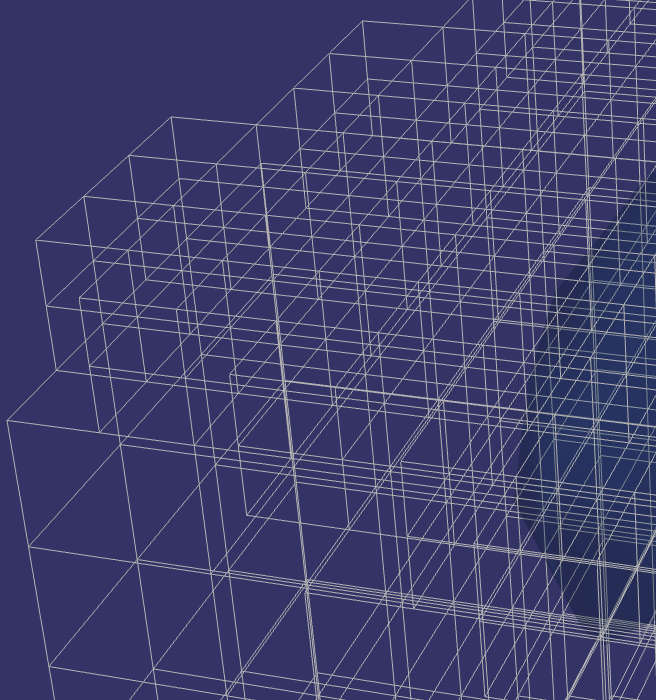
Volumes can be discretised in many ways, and Spatial Integration handles them all:
- Image - All cells are the same size. This produces a regular grid.
- Rectilinear - Rows, columns and levels of the grid can vary in size, but all cells in one row, column or level are the same size. This produces a regular grid of varying cell sizes, also known as a tensor mesh.
- Structured - Every cell joins its neighbours at the corners as in a regular grid, but the cells can be distorted to form curved grids.
- Unstructured - Each cell is independent of its neighbours. Any grid can be stored as an unstructured grid, but it takes longer to process. Non-rectangular cells, such as tetrahedral meshes, are stored this way.
- Tree - The whole volume is covered by one (or a few) large cells, which are subdivided into smaller cells where more detail is needed, and subdivided again where still more detail is needed. Usually a cell divides into 8, 2 in each direction. These grids cover a large space at varying resolution. Examples are VTK HyperTree grids and UBC OcTree meshes.
Supported Formats
| Format | Description |
|---|---|
| .vti | VTK Image Data (XML) - regular image grid |
| .vts | VTK Structured Grid (XML) - curvilinear structured grid |
| .vtr | VTK Rectilinear Grid (XML) - tensor/rectilinear grid |
| .vtu | VTK Unstructured Grid (XML) - arbitrary cell topology |
| .vth | VTK HyperTree Grid (XML) - adaptive tree grid |
| .vtk | VTK Legacy format - any of the above grid types |
| .mesh, .msh | Discretise / SimPEG Tensor Mesh - requires a separate model file containing attribute values |
| .mesh, .msh | Discretise / SimPEG Tree Mesh (OcTree) - requires a separate model file containing attribute values |
| .dcm, .dicom | DICOM medical image - can load a single file or all files in a directory. You can also select a DICOM index file |
| .xyz | Loke XYZ IP/Resistivity inversion output |
| .dat | Micromine block model (Extended Data File) - supports rotated and sub-blocked models. Text fields are loaded as numeric category indices |
Note
If you have a legacy .vtk file or another slow-to-load format (for example a UBC tensor or tree mesh), Spatial Integration can convert it to the equivalent modern XML format for you before loading. Tick the Convert to modern VTK prior to loading option in the Volume Settings dialog. The converted file is saved alongside the original and will be used automatically next time.
Loading a Volume
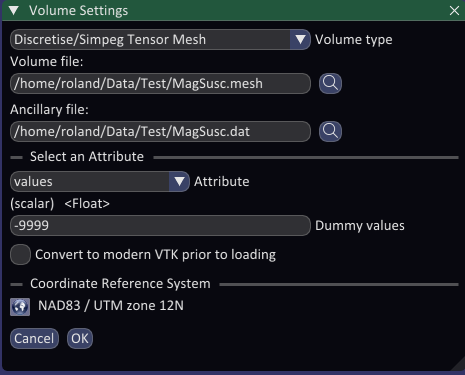
Click Load Volume on the volume flyout to open the Volume Settings dialog. You can also drop a volume file on the button.
-
Volume type - This is normally detected from the volume file once you choose one. Only select the type yourself if it was not detected correctly.
-
Volume file - Click the browse button to locate your volume file. After selecting a file, Spatial Integration will attempt to read the available attributes and populate the attribute selector. For DICOM data you can tick Use all files in directory to load a full image stack from a folder rather than a single slice.
-
Ancillary file - If the volume type needs a second file holding the attribute values (for example the UBC, SimPEG and Discretise mesh formats), a second file browse field appears.
-
Attribute - Choose the data column or array you want to load from the list. Only numeric attributes are shown. A brief summary of the selected attribute (type and size) is displayed below the selector.
-
Dummy values - If your data uses one or more special values to indicate missing or invalid cells (sometimes called null or no-data values), enter them here separated by spaces. Cells matching these values will be hidden from all visualisations. NaN (not-a-number) values are always treated as dummies and do not need to be listed.
-
Convert to modern VTK prior to loading - Available for older formats, including legacy
.vtkfiles. Tick this to convert the file to the modern XML format before loading. The converted file is saved next to the source file with the same name. -
Coordinate Reference System - Click the CRS button to assign a projected coordinate system to the volume. If the file embeds a CRS or there is a qpj file with the same filename it will be detected and displayed automatically. Without a CRS, the view CRS is assumed and the volume can only be displayed in a projected view.
Click OK to load the volume. It will appear in the scene and in the layer list, ready to be visualised.
Visualisations
Once a volume is loaded, several visualisation types are available. Add them by right-clicking the layer and choosing Add Visualisation, and open their editors from the layer flyout. Isosurface and Outline visualisations are added automatically, although the Outline starts hidden.
Isosurface
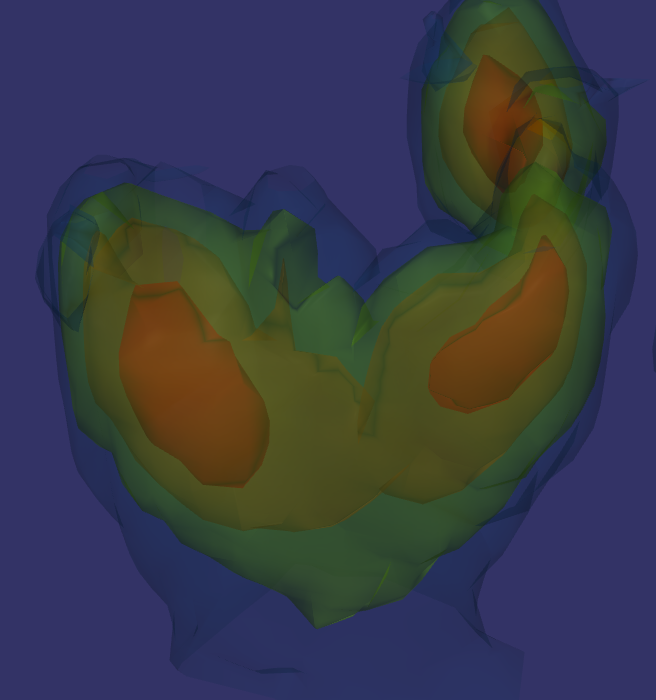
An isosurface is a 3D triangulated surface drawn at the boundary where the attribute equals a chosen value. It is the 3D equivalent of a contour line on a map. Isosurfaces are the primary way to visualise the shape and extent of features within a volume, for example an ore grade shell or a conductivity anomaly.
You can add multiple isosurfaces to a single layer, each with its own isovalue, colour and opacity. While you drag the isovalue slider a quick, coarser preview is shown; releasing the slider or typing a value calculates the surface at full resolution.
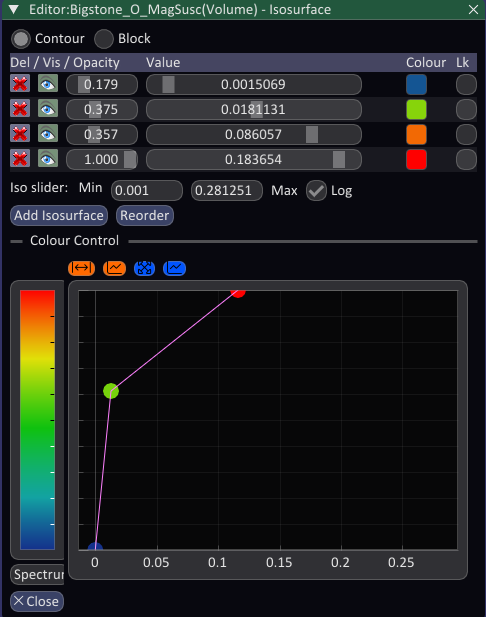
The isosurface table shows one row per isosurface, with the following controls per row:
- Delete - Remove this isosurface.
- Visible - Toggle display of this isosurface without removing it.
- Opacity - Slider from 0 (transparent) to 1 (fully opaque).
- Value - The isovalue slider. Drag to preview, release to compute the full surface.
- Colour - The fill colour of the surface. By default this is driven by the colour scale (see Colour Control below); click to override it manually.
- Lock - When ticked the colour stays at the value you chose and is not changed by the colour scale.
Use Add Isosurface to add a new isosurface at the middle of the slider range, and Reorder to sort them from lowest to highest isovalue, which helps transparent surfaces draw correctly.
The Iso slider min and max fields set the range of the isovalue slider for all isosurfaces. If the minimum value is greater than zero a Log checkbox appears to use a logarithmic slider scale, which is helpful when data spans several orders of magnitude.
The Colour Control section provides a colour scale that is applied to unlocked isosurfaces based on their isovalue.
Contours
Select Contour mode (the default) to draw each isosurface as a single-value surface, exactly where the attribute equals the isovalue. This is the best choice when you want to show a specific grade shell or structural boundary.
Blocks
Select Block mode to draw each entry as the solid set of cells whose attribute lies between a lower and an upper threshold. This suits block model display, for example to show all blocks above a cut-off grade.
Each entry has two value sliders - the lower and upper threshold - instead of a single isovalue. Tick Link threshold ranges to make the upper threshold of each entry follow the lower threshold of the next, so a set of colour-coded entries covers a continuous range of values without gaps. Click Reorder first so the entries run from lowest to highest.
Outline
The Outline visualisation draws the bounding box of the entire volume as a wireframe. It is a quick way to check that the volume is positioned and oriented correctly before calculating slower visualisations. The outline cannot be picked for coordinates or to centre the view.
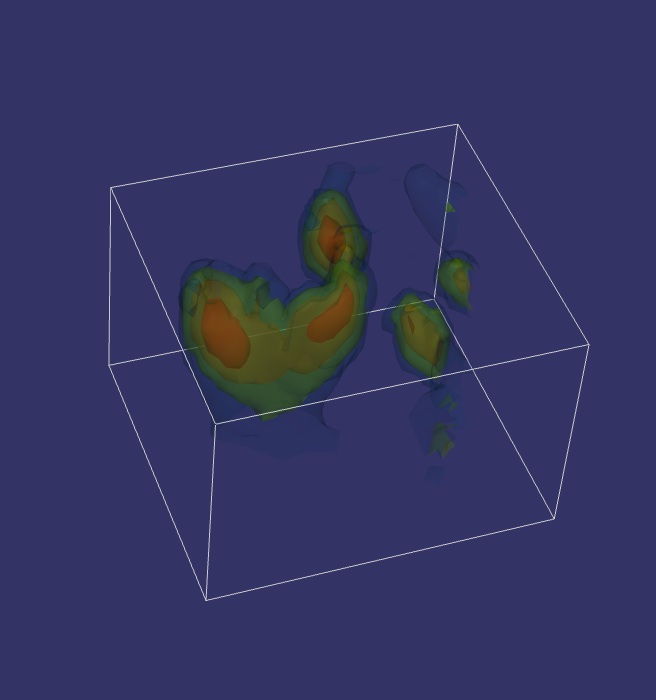
Cell Edges
The Cell Edges visualisation draws the wireframe edges of every individual cell in the grid. This lets you inspect the cell geometry directly and is particularly useful for checking that mesh spacing and cell sizes are correct, or for displaying small block models where the block boundaries should be clearly visible. Add it by right-clicking the layer and choosing Add Visualisation. Like the outline, cell edges cannot be picked for coordinates or to centre the view.
Large grids produce a great many lines, so use cell edges on coarser meshes or with a clip object to limit the area shown.