
Sun and Lighting
The scene is lit by a single sun plus a soft, even ambient light. Moving the sun changes the shading on surfaces, drill discs, isosurfaces and 3D models, which is the quickest way to bring out subtle relief such as faint structures in an elevation model or a magnetic grid draped as a surface.
Opening the Sun Angle dialog
Open the Sun Angle dialog in either of these ways:
- Click the sun button on the status bar at the bottom right of the window.
- Press the O key.
Click the button or press O again to close it. The dialog is partly transparent so you can watch the scene change behind it.
Setting the sun angle
The circular diagram is a view looking down on the scene, with north at the top. The green dot marks the sun. Drag the dot to move the sun:
- Its direction from the centre sets the Azimuth, the compass direction the light comes from.
- Its distance from the centre sets the Inclination, the height of the sun above the horizon. At the centre the sun is directly overhead; on the outer circle it sits on the horizon.
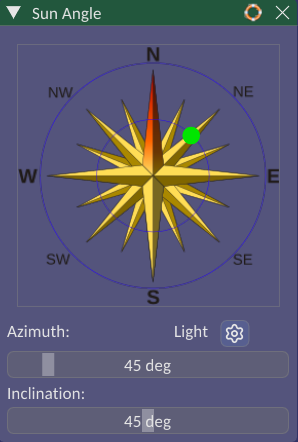
For finer control use the Azimuth slider (0 to 360 degrees) and the Inclination slider (0 to 90 degrees) below the diagram. Hold CTRL and click a slider to type an exact value.
A low sun gives long, strong shading that exaggerates small changes in slope, much like a low-angle aerial photograph. A high sun gives flatter, more even lighting that shows colour more faithfully. As with a hillshade, features that run parallel to the light direction are hard to see, so try a few azimuths when looking for linear features.
The sun angle is saved with the project.
Light settings
Click the gear button beside Light to open the Light Settings dialog, which controls the strength and colour of the two lights:
| Setting | Effect |
|---|---|
| Ambient Intensity | Brightness of the even background light that reaches every surface, including those facing away from the sun. Raise it to lift dark shadows |
| Ambient Colour | Colour of the ambient light |
| Directional Intensity | Brightness of the sun itself. Raise it for stronger shading, lower it for a flatter look |
| Directional Colour | Colour of the sunlight, for example a warm tint for a late afternoon look |
Changes are shown in the scene straight away. Click Close to keep them, or Cancel to put the lights back as they were when the dialog opened. The light settings are saved with the project.
Tip
If the scene looks washed out, lower Ambient Intensity a little and raise Directional Intensity. If shadowed slopes are too dark to read, do the opposite.
Default sun angle for new projects
The sun angle a new project starts with is set under Default Sun Angles on the Visualisation tab of the Configure dialog.