
Line Data (LineDB)
Note
Coming in Spatial Integration version 3.
LineDB is where Spatial Integration keeps line and point data: airborne and ground geophysical surveys, geochemical samples, stations, and any table of points with values attached. Each reading along a line is a fiducial, and each value recorded at it - magnetics, a radiometric count, an EM decay, a grade - is a channel. A LineDB file (.ldb) can hold one or more surveys, and each survey loaded into the scene is one layer.
Data is held in its own file beside the project rather than inside it, so large surveys stay quick to open and the same file can be used by several projects.
Tip
Point data that earlier versions kept in the Point Manager now lives in LineDB. When an older project with Point Manager data is opened, each dataset is converted to a LineDB file in the project folder and loaded as a LineDB layer. A copy of the project as it was is kept beside it, and the message log lists the files made.
The LineDB flyout
Hover over the LineDB icon in the left panel to open the flyout. It lists the LineDB layers in the project, in groups like the other flyouts, and offers:
| Button | What it does |
|---|---|
| Load LineDB ... | Open an existing .ldb file and choose which survey to load and how it is positioned. See Loading a LineDB file. |
| Import to LineDB ... | Convert a CSV, Geosoft or ASEG GDF file into a new LineDB file. See Importing data. |
Double click a layer, or right click it and choose Attribute Table..., to see and edit its values in the Attribute Table. The attribute table is also where the survey's processing tools are found: the channel calculator, filters, levelling, gridding and more.
Hover over a layer to show its visualisations, where the way it is drawn is set. See Display.
Loading a LineDB file
Click Load LineDB ... to open the Load LineDB dialog.
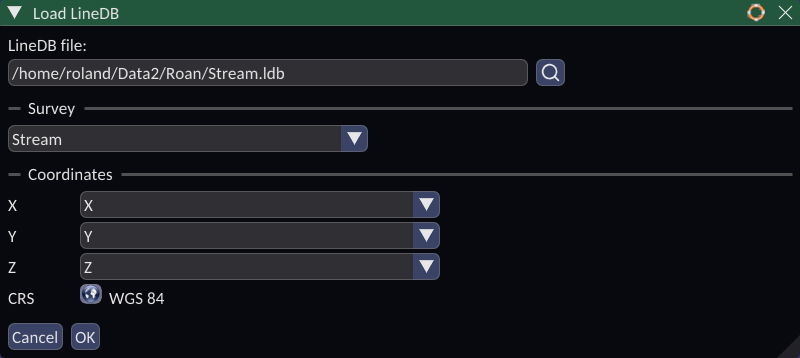
LineDB file: Click the magnifier to choose a file, type its path, or drop a file on the box.
Survey: The surveys held in the file. Choose the one to load. To load several surveys from one file, open the dialog once for each.
Coordinates
The survey is placed in the scene by its coordinate frame: the channels that hold the position, and the CRS those numbers are in. When the file already states a frame for the survey, it is filled in for you.
| Setting | Meaning |
|---|---|
| X, Y | The channels holding the horizontal position. They must be different channels. |
| Z | The channel holding the height of each fiducial, or (none). |
| Z from | Only shown when Z is (none). Fixed places every point at the height given beside it. Surface drapes the points onto one of the project's surfaces; the height beside it is then used for any points that fall outside the surface. |
| CRS | What the X and Y numbers are expressed in. Click the CRS button to choose it if it is missing or wrong. |
Choosing an X and Y pair the survey already has a frame for selects that frame. A new pair creates a new frame. The dialog says, above the buttons, what will be written to the file when you press OK - a new frame, a changed Z or CRS, or draped heights - so check it first.
Note
Draping onto a surface writes the sampled heights into the file as a new channel, which becomes the survey's Z. The heights stay with the survey after that, so the surface is not needed the next time it is loaded. Draping a large survey may take a moment; the dialog shows that it is working.
Click OK to add the survey to the scene. Once a survey has a frame, its file can also simply be dropped on the scene.
The frame can be changed later from the attribute table. See Coordinate frame.
Drag and drop
- Drop an
.ldbfile on the LineDB icon or on the 3D view to load every survey in it that already has a coordinate frame, straight into the scene. A file whose surveys state no frame opens the Load LineDB dialog instead, so one can be chosen. - Drop an
.ldbfile on the Load LineDB ... button to open the dialog with that file chosen. - Drop a CSV, Geosoft or ASEG GDF file on the Import to LineDB ... button to open the import with that file chosen. CSV and other text files dropped on the 3D view open the import too, set up for scattered points.
See Drag and Drop for more.
Importing data
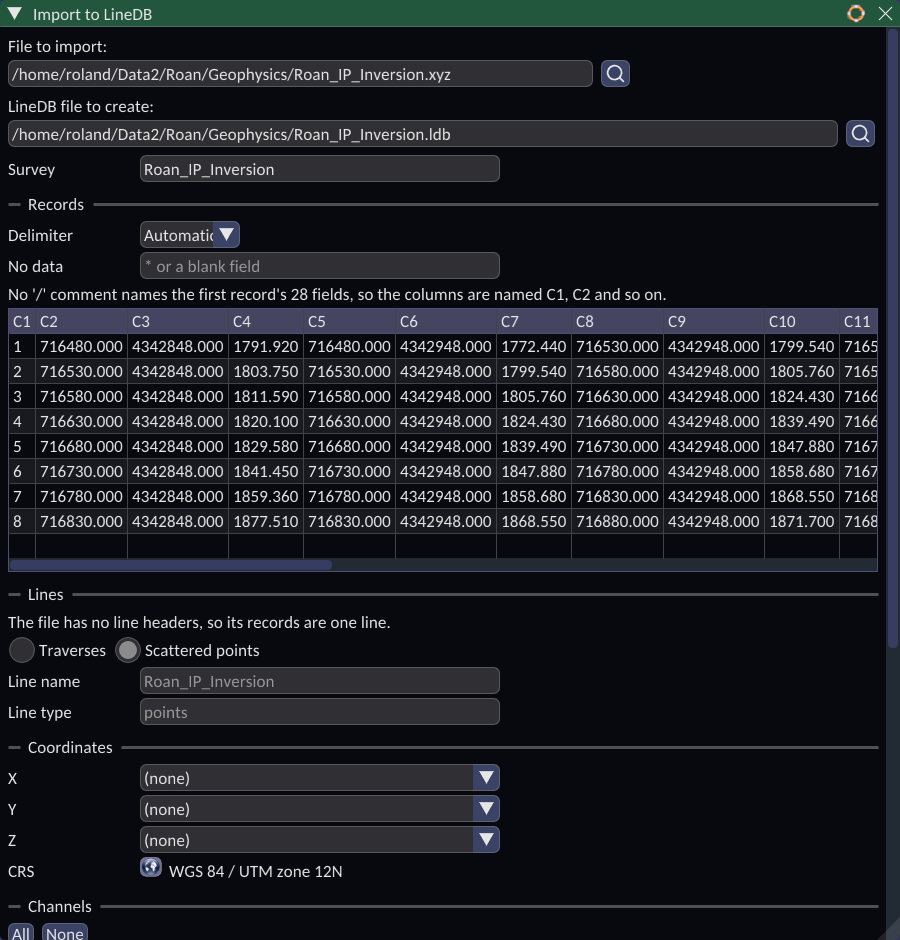
Import to LineDB ... turns a file of line or point data into a new LineDB file. When the import finishes, the Load LineDB dialog opens with the new file, ready to load.
Spatial Integration can import:
| Format | Files |
|---|---|
| Delimited text | .csv, .txt, .tsv and text .xyz files with one record per row |
| Geosoft XYZ | .xyz files with line headers such as Line 10 and Tie 10015 |
| Geosoft database | .gdb |
| ASEG GDF2 | .dfn with its .dat |
File to import: Click the magnifier to choose the file, type its path, or drop it on the box. The rest of the dialog appears once the file has been read, and changes to suit the format.
LineDB file to create: Where the new .ldb file is written. It is suggested from the input file's name. If the file exists already, the dialog says so and asks before replacing it. A file that is loaded as a layer must be removed from the project before it can be replaced.
Survey: The name of the survey in the new file. It defaults to the LineDB file's name.
Traverses or scattered points
Data comes in two kinds, and the choice decides how the records are grouped:
- Traverses - each line's records are in order along it, as along a flight line, a ground traverse or a walked profile.
- Scattered points - the records are points in no particular order, such as soil or rock chip samples, or stations.
Scattered points are kept as point sets rather than lines, so they are drawn as points and are not joined up.
Delimited text
| Setting | Meaning |
|---|---|
| Delimiter | The character between fields: comma, tab, semicolon, pipe or space. |
| Header record | The record holding the column names, or 0 for none. Records are counted from 1, comments and blank lines included. |
| Data from record | The first record of data, counted the same way. |
| Comment | Records that begin with this are skipped wherever they occur. |
| No data | Values that mean no reading besides a blank field, such as * or -99999, separated by spaces. |
A preview of the first records is shown below these settings, so you can check that the columns are split correctly.
Under Lines, choose Line column: the column naming the line (or point set) each record belongs to. Choose (none) to put every record on one line, and give it a Line name. Line type is a label given to every line, such as line or points.
Tip
A table of samples with no line column can still be split into lines later, using Split by channel... in the attribute table. See Splitting lines by a channel.
Geosoft XYZ
Geosoft XYZ files are read in the same way as delimited text, with an Automatic delimiter that takes a comma when the first record has one and runs of spaces when it does not. Column names are read from the file's / comment lines; if there are none, the columns are named C1, C2 and so on.
Lines begin at the file's line headers. Line type replaces each line's own type (L for Line, T for Tie, and so on) with a label of your own; leave it empty to keep them.
Geosoft databases
The database's lines, channels and coordinate systems are read from the .gdb file and summarised at the top. Split the type prefix from line names turns a Geosoft line name such as L100101 into line 100101 of type L. Line type replaces each line's own type with a label of your own.
ASEG GDF
Choose the .dfn file; its data file is found beside it. The files are summarised at the top. Choose Traverses or Scattered points, and the Line field naming the line each record is on, as for delimited text. Field types and units come from the .dfn and cannot be changed here.
Coordinates and channels
X, Y and Z choose the channels that hold the position. Likely channels are chosen for you; check them. Leave X and Y both (none) to import data with no position, or Z (none) for data without heights - a height can be given or draped onto a surface when the survey is loaded.
CRS is what the X and Y numbers are in. A Geosoft database states its own for each pair of channels, shown as As the file states; choose another with the CRS button, and Use the file's to go back to it.
The Channels table lists every channel in the file:
| Column | Meaning |
|---|---|
| Import | Untick a channel to leave it out. All and None above the table tick or untick them all. |
| Channel | The channel's name. |
| First value, Geosoft type or Format | What the file holds, to help you choose the type. |
| Type | How the values are stored. Automatic chooses for you from the values; choose a type to override it, such as text for sample numbers that look like numbers. |
| Unit | The units the values are measured in. |
A channel that cannot be imported, such as an array of text values, is greyed out.
Advanced holds settings for how the file is stored. The defaults suit almost all data. For Geosoft databases it also has:
- Transcribe each projection into a CRS - write each of the database's projections as a CRS where it can be written exactly.
- Verify every object header - check every line on reading, not just the first. Off is faster for very large databases.
- Refuse lines whose channels differ in length - by default, lines whose channels hold different numbers of readings are imported as they are.
Click Import. If something is still needed, the reason is shown beside the button. Progress and a report are shown in the dialog, and Stop cancels the import and removes the partly written file.
Display
A survey made of lines is drawn as lines when it is first loaded. A survey of scattered points is drawn as points: as shaded markers when it is small, and as faster screen-sized points when it is large.
Right click the layer and choose Add Visualisation to draw it another way as well, for example as points over the lines. The choices are:
| Visualisation | Draws |
|---|---|
| Line | Each line as a polyline through its fiducials. Only offered for surveys that have lines. |
| Point | A marker at each fiducial, with a choice of Shape: sphere, cube, pyramid, cone, cylinder and others, as for GIS points. Best for a few thousand points. |
| PointCloud | A point at each fiducial, drawn quickly however many there are. Points have a Minimum size (pixels), so distant points thin out rather than vanish, and can be Shade as spheres to look like beads. |
Hover over the layer to see its visualisations, and click the gear button on a visualisation to open its symbology editor. Lines have a Colour and a Line width (pixels); points have a Colour and a Radius. Each can be set to Single, Categorised, Graduated or Continuous, and driven by any channel - colour a flight line by its magnetics, or size geochemical samples by grade. The symbology editor works as for GIS layers; see Symbology.
Inactive lines, set in the attribute table, are not drawn. Point at a fiducial with the Information tool to read its values.
Working with the data
- Attribute Table - view and edit values, choose active lines, sort, filter, level and split lines, and change the coordinate frame.
- Channel Calculator - make or recalculate a channel from an expression.
- Profiles - graph channels along a line.
- Gridding - grid a channel into a raster.