
Drill Manager
Note
Coming in Spatial Integration version 3: drill holes are kept in their own DrillDB files rather than inside the project, so one set of holes can be shared between projects and passed to colleagues. Older projects are converted automatically.
Drill hole data lives in its own DrillDB file (extension .sidrill). One DrillDB file holds one set of drill holes: the collars, the downhole surveys, any number of downhole datasets, and the coordinate reference system they are in. The project refers to the file like any other data source, so the same file can be opened in several projects, copied to a colleague, or kept on a shared drive.
Projects from earlier versions
Projects saved by Spatial Integration 2.8.1 and earlier kept drill holes inside the project file. Such a project is converted automatically the first time it is opened:
- Each drill group becomes a DrillDB file in the project folder, named after the group.
- The drill layers in the scene now read from those files, with their visualisations unchanged.
- A copy of the project as it was before the conversion is kept beside it, with
.drillmanager.bakadded to its name.
Check the messages (the envelope icon in the bottom right) after opening to see which files were created. When you copy or package the project, remember to include its .sidrill files.
Opening and Importing
On the drill flyout, use Open DrillDB to add an existing DrillDB file to the scene as a drill layer, or Import Drill Data to build one from your source files. You can also drop a file on either button. The Import... button in the Drill Manager opens the same import dialog, set to add to that layer's file.
The import dialog handles all four kinds of drill data, chosen at the top under Data kind:
- Collars: one row per hole, with its position and length.
- Surveys: downhole orientation measurements.
- Downhole intervals: data with a From and a To depth, such as assays and lithology.
- Downhole points: data at a single depth, such as structural measurements.
Under Into, choose New DrillDB and give the new file a name, a folder and a CRS, or choose Existing to add the rows to the file of a drill layer already in the scene. A new file has no holes yet, so import its collars first; surveys and downhole rows attach to the holes they name.
Source files can be CSV or any supported GIS format. The dialog shows the source's columns with a preview of the data, and guesses which column plays which role from the header names. Check the guesses and correct them from the dropdown above each column; any required field that still needs a column is listed. When importing collars from a GIS point layer you can tick Use Geometry to take X and Y (and Z from a 3D source) from the geometry instead of from columns.
Collars may also carry a dip and azimuth. These are optional, and are stored as a survey at zero depth.
Columns mapped to Attribute are imported under their own names. For a downhole dataset that is how your assay and logging columns come in. For collars it lets you keep any extra columns from your collar file, such as company, year or prospect, alongside the essential ones.
If the dips in your source are positive downwards, tick Dip negative down so they are converted as they are imported.
Import adds new rows and skips any that already exist; Update overwrites matching holes, surveys and rows instead. Check the messages after a load to see anything that was skipped and why.
Drill holes need a projected coordinate reference system to calculate the drill traces, and survey azimuths should be relative to the grid north of that CRS. The CRS is stored in the DrillDB file itself, so it travels with the file.
Editing
Double-click a drill layer to open its Drill Manager. Each drill layer has its own window. The hole list on the left drives the tabs on the right, and the selected hole is highlighted in the 3D view.
- The Collar tab shows every hole with its essential columns and any extra attributes.
- The Survey tab shows the selected hole's surveys. Hovering a row marks that depth on the hole in the scene.
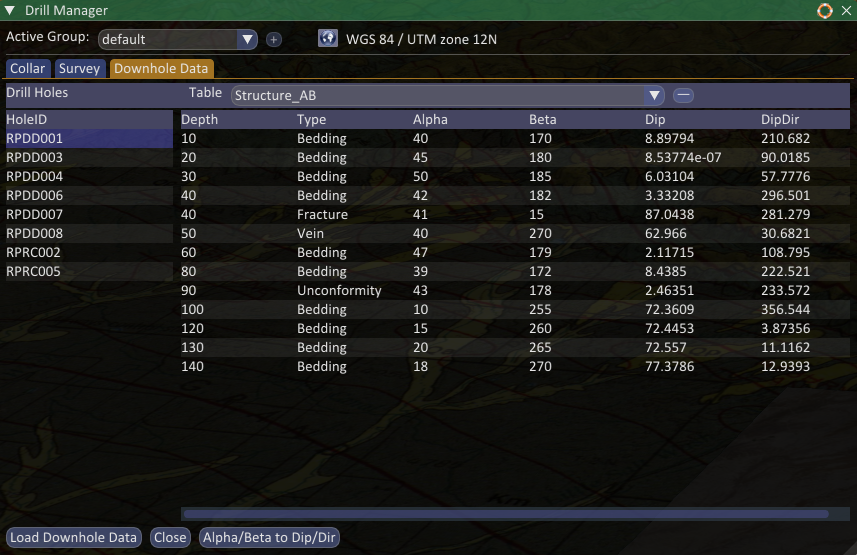
- The Downhole Data tab shows the selected hole's rows in the chosen dataset. The minus button beside the dataset selector removes the whole dataset.
Double-click any cell to edit it. Changes are pending, shown in orange, until you click Save, which writes them all to the file and recalculates the traces of the holes you changed. Revert throws the pending changes away, and the Undo and Redo buttons step through them one action at a time. Closing the window loses nothing: the pending changes are still there when you reopen it, and closing the project asks what to do with them.
Add holes, surveys and rows with the + Hole, + Survey and + Row buttons, and delete a row from its right-click menu. - Hole deletes the selected hole; its surveys and downhole rows are removed with it when you save.
Save As... writes the file, with any pending changes applied, to a new location and points the layer at the new file, leaving the original untouched.
Tools
- Drape on Surface moves each collar's elevation onto an elevation surface you have already defined. This is useful when your collar elevations are missing or less accurate than a detailed topographic surface. The traces hang from the collars, so they move with them.
- Recompute Traces desurveys every hole again. Traces are recalculated automatically whenever collars, surveys or the desurvey settings change, so this is rarely needed.
- Alpha/Beta to Dip/Dir converts structural measurements recorded as alpha and beta angles relative to the core axis into true dip and dip direction, using the orientation of the hole at each measured depth. It appears on the Downhole Data tab for point datasets, and writes new dip and dip direction columns ready for the Structure visualisation.
- Composite..., from the data processing button at the right of the toolbar, opens Compositing (Professional edition).
Displaying the Holes
When a drill layer is added, Spatial Integration gives it visualisations for Collars, Drill traces and Discs. The collar and trace visualisations are ready to use immediately, while the disc visualisation needs to be told which data to show. Other visualisations, such as Graph and Structure, can be added from the layer's right-click menu.
See Drillhole Display for how to configure them.