
Gridding (3D)
Note
Coming in Spatial Integration version 3.
Loading an interpolation result into the scene requires the Professional edition, because the result is a volume. In the Community edition, interpolated volumes in a project can be viewed read-only: shown, hidden and faded, but not loaded or changed.
Interpolation turns scattered drill sample values into a filled 3D grid. You give it a numeric downhole column - a gold assay, a copper grade, a density, a geochemical ratio - and it estimates that value at every node of a regular grid covering your deposit. The result is written as a .vti volume file which you can load straight into the scene and display with isosurfaces, block cut-offs and clip objects like any other volume.
The estimator is kriging. Unlike a simple inverse-distance average, kriging first measures how your data actually behaves in space - how far you have to move before samples stop resembling each other, and in which direction that distance is longest - and then uses that measurement to weight the samples around each grid node. The measurement step is the variogram, and it is the part of the workflow that repays the most attention.
If kriging is new to you, read Kriging Concepts first. It explains the ideas and the vocabulary without the mathematics, and everything else in this section assumes it.
Opening the Dialog
Hover over the Data Processing icon in the right tool panel, then Interpolation, and click Kriging (3D)....
You need drill data loaded first: collars, surveys and at least one downhole table containing a numeric column. Load these through the Drill Manager if you have not already. Only numeric (floating point) columns can be interpolated, so text and category columns do not appear in the attribute list - although they can be used as a domain filter.
The Workflow
The dialog has four tabs, and they are meant to be worked through from left to right.
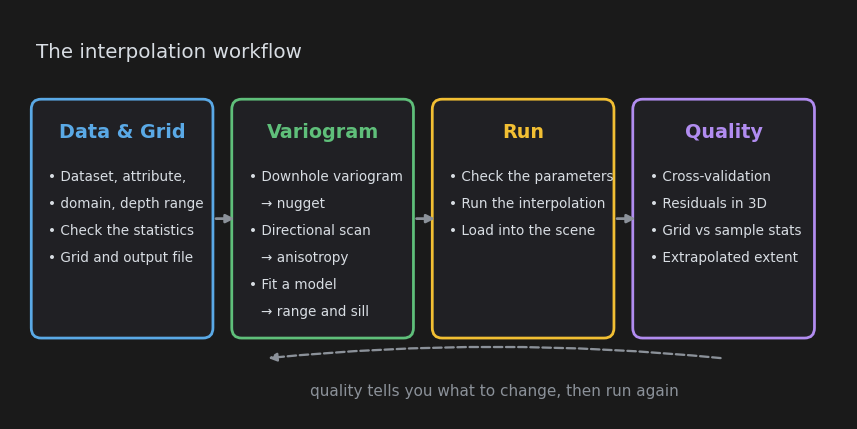
- Data & Grid - choose what to interpolate, look at the sample statistics, and define the grid the result will be written to.
- Variogram - measure the spatial behaviour of your data: the nugget, the anisotropy, and a fitted model.
- Run - check the model parameters, run the interpolation, and load the result into the scene.
- Quality - find out whether the result is any good, and what to change if it is not.
Nothing in the dialog recalculates behind your back. When a change makes an earlier result out of date, the panel that owns it shows an amber warning rather than throwing the result away, so you can see what has gone stale and decide whether to recompute it.
A First Run
If you just want a result to look at, this is the shortest honest path.
- On Data & Grid, pick your Dataset and Attribute. Samples are extracted immediately and the statistics fill in.
- Look at the Nodes count under the grid. If it is amber or red, increase the cell size until it is not - you can always come back and refine it.
- On Variogram, step 1 opens on Downhole only with a lag distance taken from your sample spacing. Click Compute variogram.
- In step 3, click Fit. Note the Nugget it finds, then tick Hold to keep it.
- Back in step 1, change Pair mode to Omnidirectional, set the Lag distance to about half your hole spacing, and compute again.
- Click Fit again. You now have a nugget from the downhole data and a range and sill from the full dataset.
- Optionally run the step 2 directional scan and click Apply to model parameters to add anisotropy.
- On Run, click Run interpolation, then Load result into scene when it finishes.
- On Quality, run the cross validation and look at the regression slope.
Steps 3 to 7 are the part worth learning properly. The Variogram page walks through them in detail.
Presets
The bar above the tabs holds presets - named parameter sets covering the data selection, grid, variogram settings and model parameters. Presets are stored per user rather than per project, so a set of parameters worked out on one deposit is available in every project you open.
- Save... stores the current settings under a name.
- Load applies a preset. Your output path is left alone, and anything the preset changes is marked stale exactly as if you had typed it.
- The bin button deletes the selected preset.
If a preset names a dataset the current project does not have, the selection falls back to this project's defaults.
Batch Runs
When a dataset has more than one numeric column, a Batch section appears at the bottom of the Data & Grid tab. Tick the attributes you want and click Run batch: one run is queued per attribute, all sharing the current grid, variogram and model parameters, and each writing <dataset>_<attribute>.vti next to the project.
Batch items run strictly one after another - interpolation fits are memory hungry and running them in parallel would help nobody. Watch progress on the Run tab, where the item counter is shown alongside the usual phase progress.
Be aware that one set of variogram parameters is rarely right for every attribute. Batch is at its best for attributes that genuinely share a spatial structure - elements in the same alteration system, say - or for a first look before tuning each one.
Note
Interpolation can take a long time, so it carries on without the dialog. Close the dialog while a run or a batch is going and the work continues; reopen it and you will find the run still in progress. Your parameters, variogram and scan are saved with the project and restored the next time you open it.
Undo
Load result into scene is undoable: Ctrl+Z removes the volume layer again, and redo puts it back. The .vti file itself is left on disk - undo removes the layer, not your work. Delete the file yourself if you no longer want it.
Also See
- Kriging Concepts - the ideas behind everything here
- Anisotropy - direction-dependent continuity
- Troubleshooting - what to do when it complains
- Volumes - displaying the grid once it is loaded