
Streaming Image Sources
Note
Requires the Professional edition. In the Community edition, streaming sources in a project are kept when the project is saved, but are not streamed or drawn.
A streaming image source drapes tiled imagery from a web service over a surface: base maps, satellite imagery, geology or any other map served as tiles. You define a source once on the Streaming tab of the Configure dialog, then add it to any surface from the Add Server list on the surface's Image Sources tab.
Supported protocols
- XYZ: slippy-map tiles, the most common web tile format. The tile origin is the top-left corner.
- TMS: OSGeo Tile Map Service. Like XYZ, but tile rows are counted from the bottom.
- WMTS: OGC Web Map Tile Service, requested either as RESTful paths or as KVP GetTile requests.
- WMS: OGC Web Map Service. Unlike the others, a WMS server publishes a list of layers, and you choose which to combine and in what order (see below).
- QGIS Live Map: your live QGIS Desktop map, streamed from the Geoscience plugin. It has its own button and is described in QGIS Live Map.
Setting up a new source
Open the Configure dialog and choose the Streaming tab. Click Add New Server, then fill in the Server Details.
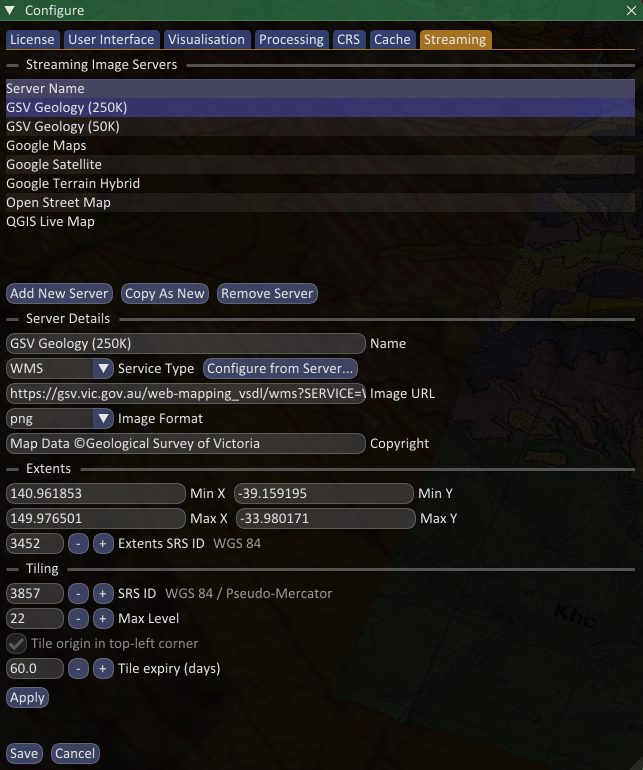
- Name: how the source appears in the list and on a surface.
- Service Type: the protocol, from the list above. This also sets the tile origin to suit the service.
- Image URL: the tile URL template. XYZ and TMS use placeholders such as
{z},{x},{y}and{quadkey}. WMTS and WMS use their own placeholders; for WMS these are filled in for you by Configure from Server... (see below). Hover over the box for examples. - Image Format: the image format of the tiles, needed when the URL does not end in a file extension.
- Transparent colour: tick and choose a colour for servers that return an opaque colour, usually white, where there is no data. Tiles with their own transparency need no setting.
- Copyright: the attribution for the imagery.
- Credentials: a Username, Password or Token / API key for servers that need them. Use them in the Image URL with the placeholders
{username},{password}and{token}. Credentials are stored encrypted in your own settings and are never saved in a project, so anyone you share a project with must enter their own. - Extents, the tiling SRS ID and Max Level describe the area the service covers and the tile grid it uses. For a new server they default to the whole Web Mercator grid, which suits most global services.
- Tile expiry (days): how long downloaded tiles are kept before being fetched again (see below).
Click Apply to keep your edits, then Save to store the source. Copy As New duplicates the selected source as a starting point, and Remove Server deletes it.
Configuring a WMS source
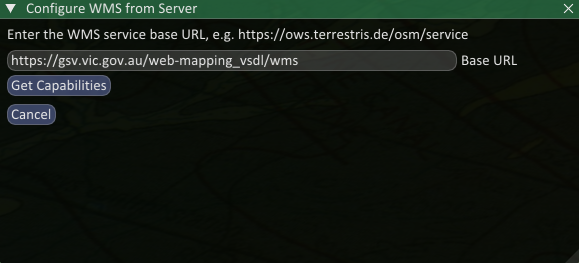
A WMS source only needs the server's base address; Spatial Integration discovers the rest. Set the Service Type to WMS and click Configure from Server.... Enter the Base URL and click Get Capabilities.
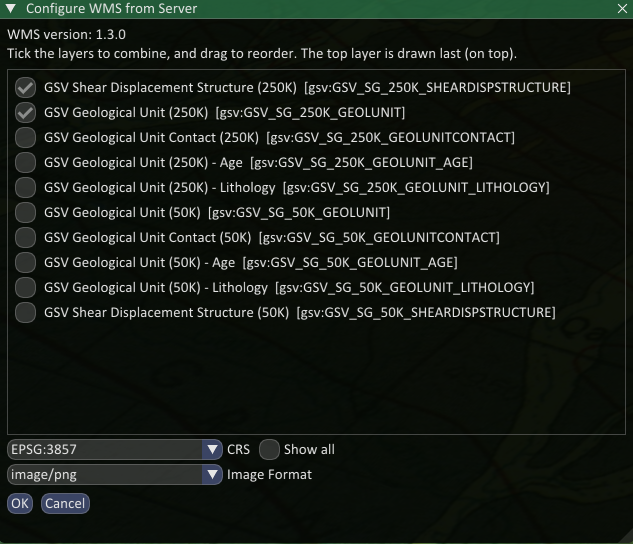
The server's layers are listed. Tick the layers you want to combine and drag them to reorder: the layer at the top of the list is drawn last, so it appears on top. Choose a CRS and Image Format, then click OK.
The Image URL, format, CRS and extents are filled in from your choices.
How tiles are cached
Downloaded tiles are kept on disk so that revisiting an area does not download them again. Once a tile is older than the source's Tile expiry (days), it is fetched again, so the imagery stays reasonably current without a manual refresh. The old tile is only replaced once the new one has downloaded, so nothing is lost if the server cannot be reached.
Reconfiguring a WMS source, by changing its layers or CRS, clears that source's cached tiles so that the old selection does not keep showing.
You can also manage the cache on the Cache tab of the Configure dialog, which lists each cached source and the disk space it uses. Select one and click Delete to clear it; its tiles are downloaded again the next time that source is viewed.
When a server stops responding
Servers go down and laptops go offline. When a source stops answering, Spatial Integration stops asking it for a while and draws that source from its cached tiles instead, so the rest of the project keeps working at full speed. Areas you have not viewed before have no imagery from that source until it is back.
A warning icon appears beside the source in the Surface flyout, and a message is written to the log. The source is not removed: it stays on the surface and is still saved with the project.
The server is retried automatically about every half minute, and the source returns to normal as soon as it answers. To retry immediately, click the refresh button next to the warning icon.