
Getting Started
Activating your license
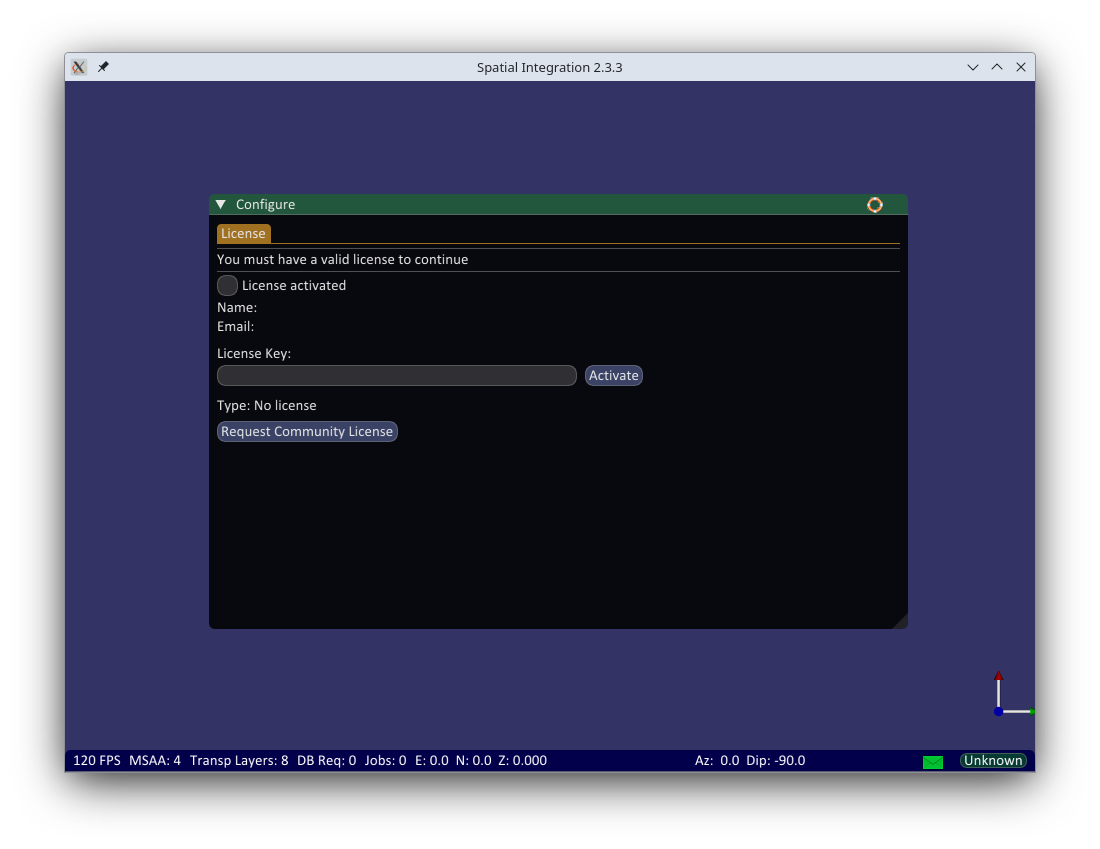
The first time you run Spatial Integration after installing it, the License tab of the Configure window opens, as shown below. You need a license to use Spatial Integration, even the Community edition.
To get a Community edition license, click Request Community License, enter your name and email address, then click Send Request. Within a few minutes you will receive an email with your license key.
To request a Professional license, contact us at licensing@fourwindstechnology.com. A Community edition license can be upgraded to Professional quickly and easily.
Paste the license key into the box (Ctrl V pastes from the clipboard) and click Activate. Check that the license details are correct, then click Save.
Your license key will look similar to this: BA52E0-E5D59E-22A33B-FBCADE-8C271C-V3
The Welcome screen
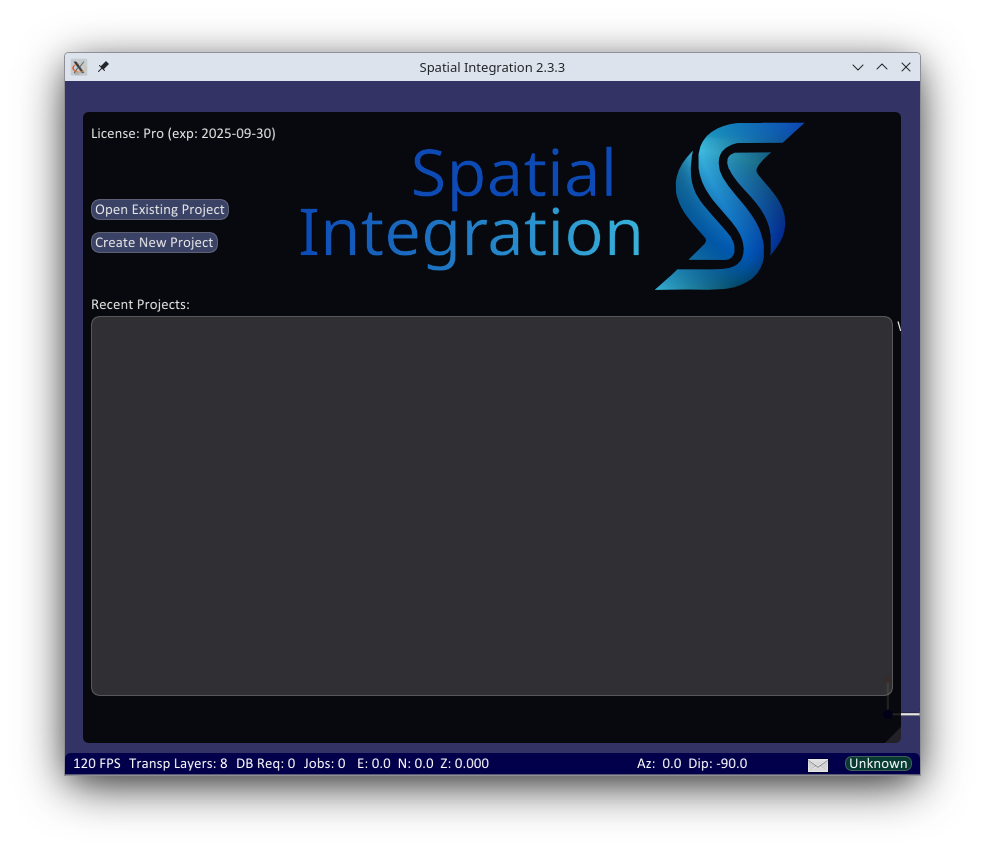
Next you will see the Welcome screen, which normally appears each time you start Spatial Integration.
Your recent projects are listed, and you can open one by clicking it. The first time, you will need to open an existing project or create a new project with the buttons provided. If you just want to see Spatial Integration in action, download one of the example projects.
Adding your first data
An elevation surface is a good place to start.
- Hover over the Surface icon in the left panel and click New Elevation Surface.... The Surface dialog opens.
- On the Height Sources tab, click Add Height Source and choose an elevation grid. The grid must hold elevation values, not be a picture of elevation. If this is the first data in your project and the grid has a valid coordinate reference system (CRS), the project is set to that CRS. You can change it later.
- Add more grids if you have them, with the most detailed at the top of the list. Drag rows to reorder them. The grids do not need to share a CRS. Large grids take a few moments the first time while Spatial Integration builds overviews; these are compatible with other software such as QGIS, so this only happens once.
- On the Image Sources tab, click Add Local Image to drape images such as air photos or geophysics images over the surface. Order matters only where images overlap or are blended with transparency. As with grids, images can be in any CRS and of any size.
- If parts of the surface have no image over them, colour it by elevation on the Symbology tab. Click the grey swatch to choose a single colour, or choose Continuous and click Linear transform from the data above the plot. Drag the transform's anchor points to adjust the colours, double click to add a point, and right click a point to delete it.
You can also simply drag files from your file manager onto the window; see Drag and Drop.
See Surfaces for more, and Application Layout for a tour of the window.