
Layer Control and Symbology
Note
Coming in Spatial Integration version 3: the Layer Control window, Alt+click to open a symbology editor from the scene, and the show, hide and find buttons in the editor's title bar.
The side flyouts are the main place to manage layers, but they close as soon as the mouse moves away. The Layer Control window keeps the visibility of every layer in one place that stays open, and the symbology editor can be reached straight from the scene. Both are handy when presenting, or when comparing layers while you look at the data.
Layer Control
Press the \ (backslash) key to open or close the Layer Control window.
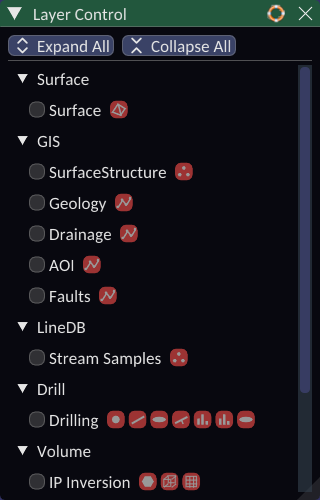
It lists every loaded layer in a tree, under the same headings and groups as the flyouts: Surface, GIS, Point Cloud, LineDB, Drill, Volume, Asset and Geological Model. Headings with no layers are left out.
- Tick or untick a layer or group to show or hide it. Clicking the name does the same.
- A layer or group shown in grey is hidden by a group above it. Ticking it will not show it until that group is shown too.
- Click the arrows to open and close branches, or use Expand All and Collapse All at the top. The window remembers which branches you opened, separately from the flyouts.
Small buttons after a layer name stand for its visualisations, such as a drillhole layer's traces, discs and graphs. Hover over one to see its name, and click it to open its symbology editor. A button shown dimmed belongs to a visualisation that is currently hidden. A layer with a single visualisation that can only be drawn in one colour has no button.
Opening a symbology editor
A symbology editor sets how one visualisation is drawn: its colours, sizes and widths, and the attribute that drives them. Open one in any of these ways:
- Click the gear button on the visualisation's row in the flyout.
- Click a visualisation button in the Layer Control window.
- Hold Alt and left click the object in the scene. The editor for whatever is under the pointer opens. This is often the quickest way when you can see the object but are not sure which layer it belongs to.
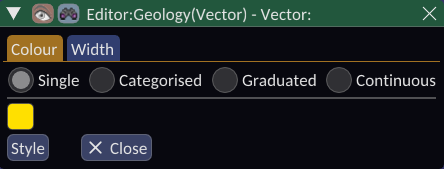
Each visualisation has its own editor window, and several can be open at once. The title shows the layer name, its type and the visualisation.
How the symbology itself works (Single, Categorised, Graduated and Continuous classes, colour ramps and copying styles to and from QGIS) is described under GIS Symbology. The same editor is used for every type of layer, with tabs for each property that can be styled.
The editor title bar
Buttons on the left of the editor's title bar act on the visualisation without going back to the flyout:
- The eye button shows or hides it. Right click it to set its opacity.
- The magnifier button moves the view to the layer.
- Some visualisations, such as volume isosurfaces, also have a help button that opens their help page.
Click Close or press Escape to close the editor. Changes take effect as you make them and are saved with the project.
Labels
Labels show an attribute value or name beside each object. Turn them on with the tag button on a visualisation's row in the flyout, and right click the tag button to open the label settings:
| Setting | Effect |
|---|---|
| Enable | Show or hide the labels |
| Attribute | The field the label text comes from. The lock button keeps this field when the visualisation's main attribute is changed |
| Size | Text size |
| Precision | Number of decimal places for numeric values |
| Style | Fixed lies flat in the horizontal plane, Flag stands upright and turns to face you, Billboard always faces the screen |
| Colour and Opacity | Colour and transparency of the text |
| Outline | Colour and width of an outline around the text, to keep it readable against busy backgrounds |
| Offset | Shift of the label from its object along X, Y and Z |
See also Drillhole Display for the labels on drillholes.