
3D Shapes
A 3D shape is typically created in another application, such as a resource shell or wireframe from mine planning or modelling software, and exported as a Wavefront OBJ, DXF or similar file. These files usually hold just the geometry, without colours or lighting information, and the shape has a fixed position in space given by the coordinates in the file.
Spatial Integration can tidy the geometry as it loads, so the shape draws efficiently and you can choose its colour. Load a 3D shape using the menu below:
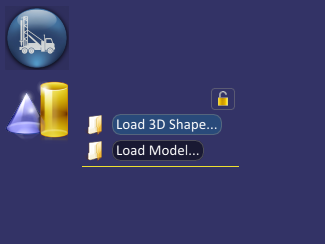
The Asset Settings dialog below is displayed. First, select your file under 3D object file. The Layer Name is suggested from the file name, but you can change it here. We suggest keeping the layer name short, but meaningful.
You can select several files at once using the Ctrl and Shift keys in the usual way. The layer names are then taken from the file names and cannot be changed here during the initial load.
Select the CRS of the layer coordinates. If there is a .qpj projection file with the same name as the source file in the same folder, Spatial Integration picks up the CRS automatically. QGIS and Spatial Integration write qpj files when a CRS is defined, so this normally only has to be done once. If several files have been selected, the CRS you choose is assigned to all of them.
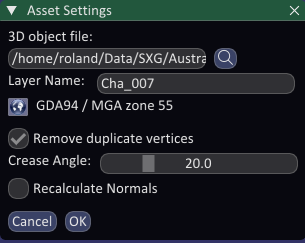
Remove Duplicate Vertices
A 3D surface is drawn as a mesh of triangles joined at their corners (vertices). Many applications export a separate copy of each corner for every triangle that uses it. Such a shape uses more memory than it needs to, and it is lit triangle by triangle, so it looks faceted.
Tick Remove duplicate vertices to merge the shared corners. The surface is then lit smoothly across neighbouring triangles, and it uses less memory. Where two triangles meet at a sharp angle, such as the edge of a bench or the rim of a pit, the edge should stay sharp, so corners are not merged where the angle between the triangles is greater than the Crease Angle.
Recalculate Normals
Normals are the directions each part of a surface faces, and they control how the surface is lit. They are calculated when the file does not supply them. If the lighting looks wrong, for example a shape that is dark on the side facing the sun or that shows patchy shading, tick Recalculate Normals to recalculate them from the geometry.
Render Polyline Strips as Triangles
Some DXF exporters store a surface as 3D polylines that zig-zag between the upper and lower edge of a strip, rather than as triangles. Read as lines, such a surface appears as a zig-zag wireframe. Tick Render polyline strips as triangles to draw those polylines as the surface they were meant to be. Polylines that do not look like a strip are left as lines.