
Drillhole Discs
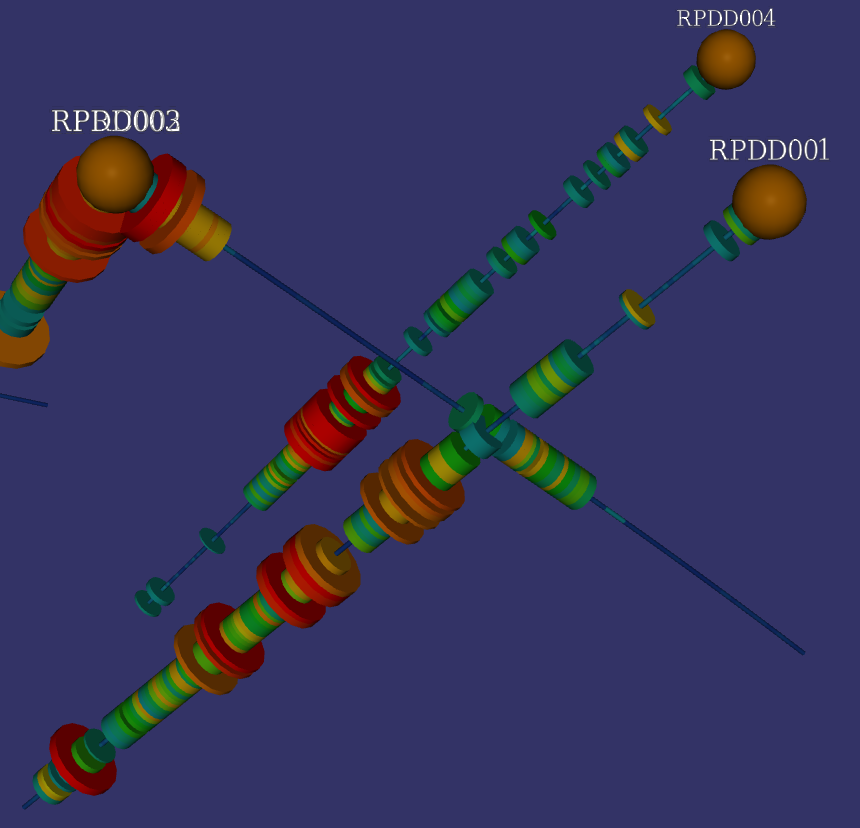
The Disc visualisation draws a stack of discs along each drill hole, coloured and sized from your downhole data. It is the main way to view logged values such as assays, and it works with both interval and point tables.
A disc visualisation is added automatically with every drill layer, but it is left unconfigured: choose a table and the fields to display before it shows anything meaningful. Open the editor by hovering over the drill layer and clicking the disc visualisation button.
Choosing a Table
At the top of the editor, use the Table dropdown to select the downhole table you want to display. All of the interval and point tables in the layer's DrillDB file are listed.
For interval tables each disc spans the length of its interval. For point tables there is no interval length, so each point is drawn as a short disc; and a Max Gap control appears to limit how tall they become. A point disc is half as tall as the distance to the next point, but no taller than half the Max Gap, so isolated points do not grow unreasonably large.
Colour and Radius
A disc has two properties you can drive from your data: its Colour and its Radius. Each is set on its own tab near the top of the editor.
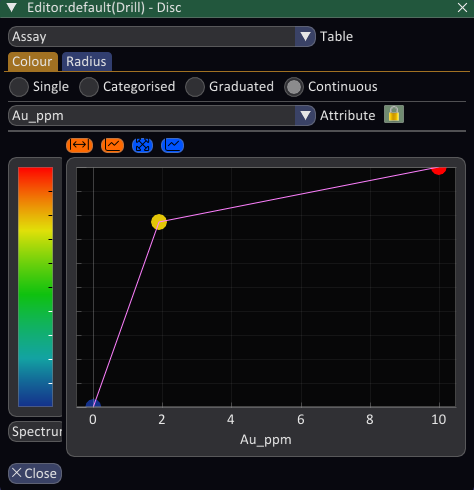
Each class can be set to one of four symbology types: Single, Categorised, Graduated or Continuous, selected with the radio buttons. In brief, Single applies one fixed value, Categorised gives each category its own colour or size, Graduated assigns a colour or size to each of a series of value ranges, and Continuous maps a numeric range onto a colour ramp or a range of radii. The types work the same way as for GIS symbology.
Combining Colour and Radius
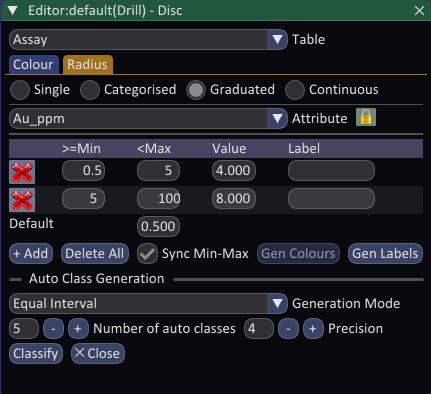
The two classes are most powerful when used together to reinforce a single field. For example, you might colour the discs by an assay grade using a Continuous or Graduated ramp, and at the same time drive the Radius from the same grade with a Graduated class. High grade intervals then appear both hot in colour and large in size, making them stand out at a glance.
By default the two tabs are locked to the same attribute, shown by the lock icon next to the Attribute dropdown: choosing a field on one tab applies it to the other as well.
Click the lock icon to unlock them when you want Colour and Radius to show different fields. For instance you could colour by Au grade while sizing by Ag grade, encoding two variables at once on the same discs. While unlocked, each tab keeps its own attribute.