
Point Clouds
Note
Coming in Spatial Integration version 3.
Point clouds are large sets of surveyed points, such as LiDAR from an aircraft or drone, terrestrial laser scans, or photogrammetry. Spatial Integration loads LAS and LAZ files, including Cloud Optimised Point Clouds (.copc.laz), and draws them in the scene alongside your surfaces, drillholes and other data. Very large clouds can be viewed: the detail drawn follows the view, so the cloud stays responsive as you move around it.
The Point Cloud flyout
Hover over the Point Cloud icon in the left panel to open the flyout. It lists the point clouds in the project, in groups like the other flyouts, and has a Load Point Cloud ... button.
Hover over a cloud to show its visualisation, where the way it is drawn is set. See Display.
Loading a point cloud
Click Load Point Cloud ... to open the Point Cloud dialog.
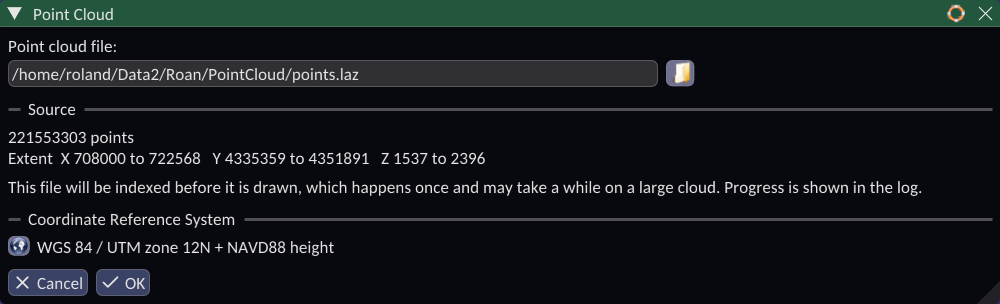
Point cloud file: Click the magnifier to choose a .las or .laz file, type its path, or drop a file on the box.
Once the file has been read, the Source section shows how many points it holds and its extent in X, Y and Z.
Coordinate Reference System: The CRS stated in the file is shown. If it is missing or wrong, click the CRS button to choose the right one. A CRS you choose is saved in a .qpj file beside the point cloud, so it is picked up the next time the file is loaded.
Click OK to load the cloud. The new layer is named after the file.
Preparing a large file
The first time a LAS or LAZ file is opened, Spatial Integration prepares it for display, and the dialog says so before you press OK. This happens once per file and may take a while for a large cloud. It runs in the background, so you can carry on working; progress is shown in the message log, and the cloud appears in the scene when it is ready.
The prepared data is kept in files beside the original, named after it, so the next time the file is loaded - in this project or another - it opens straight away. If the original file changes, it is prepared again. A Cloud Optimised Point Cloud (.copc.laz) is already in a form that can be displayed and needs no preparation.
Tip
Keep large point clouds in a folder you can write to. The prepared files are written next to the original.
If the project is closed before preparation finishes, the cloud is not added to whichever project is open next. Load it again; if preparation had finished, it opens straight away.
Drag and drop
Drop one or more .las or .laz files on the 3D view, or on the Load Point Cloud ... button, to load them straight into the scene with the CRS stated in each file. Each file becomes its own layer. See Drag and Drop.
Display
Hover over the cloud in the flyout to show its visualisation row, where it can be shown, hidden and faded. Click the gear button to open the symbology editor.
| Setting | What it does |
|---|---|
| Minimum size (pixels) | Points are never drawn smaller than this, so a distant cloud thins out rather than disappearing. |
| Shade as spheres | Draw each point as a lit sphere rather than a flat square. Usually left off for a scanned cloud, where there is no surface for shading to describe. |
| Colour | The colour of the points. |
| Radius | The size of each point in the scene, in the same units as the scene. Close up, points grow with the radius; further away, the minimum size takes over. |
Colour and Radius can each be set to Single, Categorised, Graduated or Continuous, as for GIS layers, and driven by the attributes the file holds. These usually include:
| Attribute | Typical use |
|---|---|
| Z | A continuous colour ramp by elevation. Often the clearest view of terrain. |
| Intensity | The strength of the return, on a continuous ramp. Shows paint lines, rock and vegetation contrasts. |
| Classification | Categorised colours for ground, vegetation, buildings, water and so on, as classified in the file. |
| ReturnNumber, NumberOfReturns | Separate first returns (canopy) from last returns (ground). |
| ScanAngle, PointSourceId, GpsTime, UserData | Check flight lines and acquisition. |
| Red, Green, Blue | The colour channels stored in the file, where it has them. |
Any extra attributes stored in the file are offered too. Categorised colouring works on attributes with a limited number of distinct values, such as Classification. An attribute with too many values to categorise, such as Intensity, is reported in the message log; use a continuous or graduated style for it instead.
Tip
Use Categorised colour on Classification to tell ground from vegetation and buildings at a glance, and the Clip tool to cut away what is in the way.
Picking points
Point at the cloud with the Information tool to read the attributes of the point under the pointer and its position. Click to turn it into an information panel in the scene.