
Configure
Note
Coming in Spatial Integration version 3: the Theme, UI Scale and live font size settings, background colour, video volume, terrain detail targets, flythrough colours and sizes, file watching, the FFT preview limit, the command journal option, the cache list and the Assistant tab.
The Configure dialog holds settings that apply to Spatial Integration as a whole rather than to one project. Open it from the Configure (gear) button at the bottom of the Tool flyout on the right-hand side of the window.
The settings are arranged on tabs. Click Save at the bottom of the dialog to keep your changes, or Cancel to discard them. Some settings, such as the theme, font size and background colour, are shown straight away so you can judge them before saving. The help button in the title bar opens the help page for the tab you are on.
License
Shows the licence key and activation state of this computer, and lets you activate, deactivate or request a licence. See Licensing.
User Interface
| Setting | Effect |
|---|---|
| Theme | Colour scheme of the menus and dialogs |
| Font Size | Size of the text. Press Enter or use the + and - buttons to apply it; Default returns to the standard size |
| UI Scale | Size of text and controls on high resolution displays. Auto follows the scale setting of your display |
| Delay before hiding panels (ms) | How long the side flyouts stay open after the mouse pointer leaves them |
| Use hue wheel for colour edits | Show a colour wheel instead of a colour square in colour pickers |
| Number of recent projects | How many projects are listed under Open Recent |
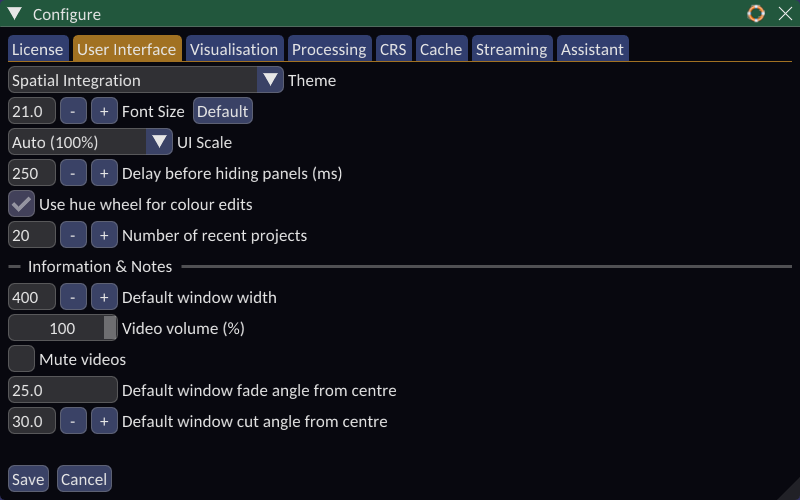
Under Information & Notes:
| Setting | Effect |
|---|---|
| Default window width | Width of new information callouts |
| Video volume (%) | Overall loudness of videos playing on information panels, on top of each panel's own volume |
| Mute videos | Silence every video on information panels |
| Default window fade angle from centre | Angle from the centre of the view at which new callouts start to fade |
| Default window cut angle from centre | Angle at which new callouts disappear completely. It must be larger than the fade angle |
See Information for how fading works.
Visualisation
Background colour sets the colour behind the scene. Reset returns it to the default.
Terrain Detail balances the detail drawn on surfaces against how smoothly the scene moves:
- Adapt terrain detail to frame rate: coarsen surfaces when the frame rate drops below the Target frame rate (FPS), and add detail back when there is headroom. A higher target gives smoother movement; a lower target gives sharper surfaces.
- Reduce detail when memory runs low: shed surface detail as the computer's memory or graphics memory fills. Memory to keep free (GB) is how much system memory is left for everything else. Terrain share of GPU memory is the fraction of graphics memory surfaces may use; the rest is kept for volumes, images and transparency. This option takes priority over the frame rate target, because running out of memory is worse than a slow frame.
Default Sun Angles sets the sun Azimuth and Declination (height above the horizon) that new projects start with. See Sun and Lighting.
Drill Trace:
- Display drill trace as line: draw drill traces as thin lines rather than as ribbons with width.
- Default show collar label at bottom of hole: also show the hole name at the bottom of the hole when depth labels are turned on. See Drillhole Display.
Graticule sets the number of grid lines, their colours and whether the labels carry E, N and RL suffixes. See Graticule.
Flythrough sets whether the flight path and cameras are shown when you open a flythrough, and their colour and size. See Flythrough.
Processing
Reload a layer when its source file changes: Watch the files your layers are read from and rebuild a layer when another program changes its file, so an edit saved in QGIS or a rerun gridding job appears without reloading by hand. A layer with unsaved edits is left alone until the edits are saved or undone.
Largest grid for live preview (padded cells): Grids larger than this open the FFT Filtering dialog in Apply mode, where nothing is filtered until you press Apply. The default, 4194304 cells, is a 2048 x 2048 grid.
Generate external overviews only: Large rasters need overviews (reduced resolution copies) to display quickly. When ticked, overviews are always written to a separate .ovr file beside the raster, so the raster file itself is never changed.
Screenshot: The folder screenshots are saved to (use the browse button to choose it) and the Image format: png, jpg, bmp or tga.
New command file each session: Spatial Integration keeps a journal of the commands run in each project. When ticked, each time a project is opened a new journal is started and the previous three are kept. When unticked, every session adds to the same file.
CRS
Show CRS groups in dialog chooses which groups of coordinate reference systems are listed when you select a CRS. Untick the groups you never use to shorten the list.
Custom CRS manages your own coordinate reference systems, for local mine grids or other systems that have no standard code. Select one in the list to see its description and definition (WKT).
- Add New CRS creates a new entry. Give it a description and paste or type its WKT definition.
- Verify WKT checks that the definition is valid.
- Apply saves the changes to the selected CRS.
- Remove CRS deletes the selected CRS.
Custom CRSs are then available wherever you choose a CRS.
Cache
Tiles from streaming image sources are kept in a cache on disk so they do not have to be downloaded again. Cache maximum size (MB) limits how much disk space it may use; the oldest tiles are removed when it is full.
Cached Sources lists each source in the cache with its size. Select a source and click Delete to remove its tiles, for example after the server has updated its imagery; they are downloaded again when next needed. Refresh re-reads the list.
Streaming
Set up the image servers used for streamed overlays (XYZ, TMS, WMTS and WMS) and the QGIS Live Map: name, service type, URL, image format, credentials, extents and tiling. See Streaming Image Sources.
Note
Streaming image sources require the Professional edition.
Assistant
Choose and configure the model the Assistant uses, how it behaves, and the server that lets other programs use Spatial Integration's tools. See Assistant.