
Models
A model is typically a self-contained 3D object with its own textures, colours and surface detail. It is designed to be used as it is, apart from its location, rotation and scale. Models can be purely decorative, but can also be spatially specific, such as a 3D representation of a factory.
When Spatial Integration loads a model it honours the embedded textures, animations and colours as closely as it can. Once a model is loaded you can also place copies of it around the scene.
Load a model using the menu below:
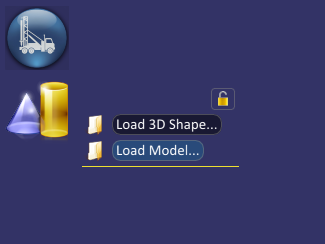
The Asset Settings dialog below is displayed. First, select your file under 3D object file. The Layer Name is suggested from the file name, but you can change it here. We suggest keeping the layer name short, but meaningful.
You can select several files at once using the Ctrl and Shift keys in the usual way. The layer names are then taken from the file names and cannot be changed here during the initial load.
Models use their own coordinates. These can be anything: 0 to 1, metres from one corner (0 to 42, say), or the real-world CRS coordinates of a modelled building. The options below handle all of these.
Place at Scene Centre
Tick this box if your model uses arbitrary coordinates and you want to place it at a point in your scene. The model's 0, 0, 0 point is placed at the current scene centre, which you set by clicking the middle mouse button on the scene. The model itself might not appear at that point if it was not built around 0, 0, 0 in its own coordinates. You can fix this using the Hotpoint Offset below.
If your model was built in the real-world coordinates of your scene's CRS, untick this box.
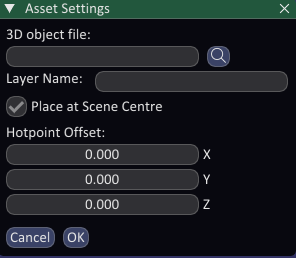
Hotpoint Offset
Models are easier to place when their 0, 0, 0 origin is somewhere that makes sense to you. When placing an animal, for example, the origin should be the horizontal centre of the animal in line with the bottom of the feet. For a building you might want the origin to be the front door at the base. This matters most when rotating a model, because it rotates around its origin. The Hotpoint Offset shifts the origin of the model to a convenient place.
If you know the Hotpoint Offset, you can type it in directly when you first open the file. More often you leave it at 0, load the file, then adjust the values while watching the model move in the scene:
- Middle-click the scene where you want your model to be placed, to make it the scene centre.
- Load the model with Place at Scene Centre selected and the Hotpoint Offset left at 0.
- Zoom out, or click the Find button on the layer flyout, to see where the model is drawn.
- Double-click the model layer in the flyout to reopen the Asset Settings dialog.
- Drag the X, Y and Z Hotpoint Offset values (or type in the boxes) to move the model to where you want it relative to the placement point.
- If it helps, move and rotate the model with the buttons in the Copies section of the dialog.
Copies
Once a model is loaded, double-click its layer in the Asset flyout to reopen the Asset Settings dialog, where you can change options and make copies. The dialog now shows a Copies section, with a row for each copy.
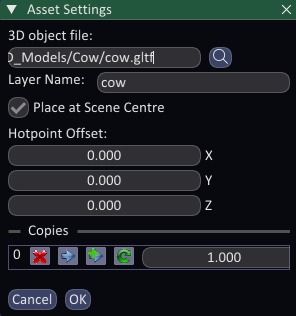
To make a new copy, click the Place new copy button, then click (or click and drag) in the scene where you want it to go. This adds a row to the list of copies.
To move a copy, click the Move button on its row, then click (or click and drag) at the new location. Click the Move button again to leave move mode.
To rotate a copy, click the Rotate button on its row, then hold the left Ctrl key while dragging left and right with the left mouse button. This rotates the model around the vertical (Z) axis. Hold the left Shift key instead to rotate around the X axis, or Alt to rotate around the Y axis. Click the Rotate button again to leave rotate mode.
Drag the Scale value on a row to resize that copy, and the Remove this copy button deletes a copy.
Animations
If the model contains animations, they are listed in the Asset Animations flyout on the right edge of the window, where you can start and stop them. An animation plays in step on all copies of a model; to play different or unsynchronised animations, load the model again as another layer.