
Information
Note
Coming in Spatial Integration version 3: information panels standing in the scene, linked PDF pages, images and videos with sound, image rotation, photo import, draping notes on a surface, and row selection and find in the Information Manager.
The Information tool tells you what you are looking at. Point at anything in the scene and a small window follows the mouse, showing the details of whatever is under the pointer. Click, and that information becomes a panel standing in the scene beside the point, joined to it by a line, ready to be edited into a note with your own text and images.
Panels are part of the scene: you can orbit around them and zoom in to read them like any other object, and they appear in flythroughs and screenshots. They are saved with the project.
Turning the Tool On and Off
Toggle the Information tool with the i button in the tools menu along the right edge of the screen, or press the I key.
The button stays highlighted while the tool is active. Turning the tool off closes the window that follows the mouse and stops clicks creating new panels, but it does not remove the notes you have already placed.
Dynamic Information
While the tool is active, a window follows the mouse pointer and updates as you move it across the scene.
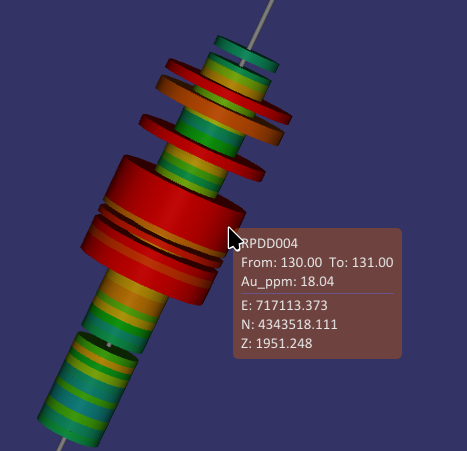
The content suits whatever the pointer is over. Most entries finish with the position of the point under the pointer, as easting, northing and elevation, or as longitude, latitude and elevation when the view uses a geographic CRS. If the pointer is not over anything, the window disappears until it finds something again.
Creating an Information Panel
Click the scene while the tool is active to turn what you are looking at into an information panel. The panel is filled with the information the dynamic window was showing, faces the camera, and is placed above and to the right of the point at a size that reads well from where you are.
To edit an existing panel:
- Click it while the tool is active. This opens its editor rather than creating a new panel on top of it.
Alt+click it at any time, with or without the tool, just asAlt+click opens the symbology editor for other objects.- Double click its row in the Information Manager.
Panels behave like any other object in the scene: the status bar shows the coordinates of the point under the pointer, a middle click centres the view on the panel, and the dynamic window names the note you are pointing at. A panel that has faded out completely cannot be picked.
Panels keep their shape when the vertical exaggeration is changed, and their text is redrawn at a higher resolution as you zoom in, so they stay sharp close up.
Editing a Panel
Content
Content holds the Title, the Upper and Lower text and the Image, as described for screen callouts. The text is markdown, so **bold**, *italic*, # headings and - lists are drawn as such, and each line you type stays on its own line. The panel is redrawn when you finish editing a field.
Linked Document
Linked document shows a page you have made elsewhere instead of the note's own text. Choose a PDF, image or video file with the browse button, or type its path. The panel then shows the title with the page beneath it, filling the panel's width. The upper text, image and lower text are kept but not shown.
- For a PDF, choose the Page to show. PDF pages are drawn sharply at whatever size the panel is seen.
- Tick Page only to show the page by itself, with no title, border, padding or background, so a page with its own heading and framing looks exactly as it was made.
- The clear button beside the path removes the link and brings back the note's own text.
The Rotate buttons turn the page or image a quarter turn at a time, for a photo taken on its side. Only the display is turned, not the file, and the panel's height follows the turned shape. Rotation applies to a linked PDF page or image, to the note's own image when there is no link, and to the image of a screen callout. Videos are not turned.
The linked file is read from where it is, so keep it with the project. If it cannot be read, the panel shows the note's own text instead.
Linked Videos
A linked video (MP4, MOV, MKV, WebM, AVI and other common formats) plays on the panel with its sound. The editor shows the video's size, length and frame rate, and sets which part of it plays:
- Start (s) is how many seconds into the file the clip begins.
- Duration (s) is how long the clip runs. Leave it at 0 to play to the end of the file.
- Repeat is Once, which stops on the clip's last frame, or Loop.
- Play when shown starts the clip as soon as the panel appears. Otherwise the panel shows the clip's first frame until you play it.
- Volume (%) sets how loud the video's sound is. It shows No sound track for a video without one.
Below these are play, pause, stop and mute buttons, and a slider to move through the clip. These act on the panel straight away and are not saved with the note.
Point at a video panel in the scene and faint controls fade in along the bottom of the video: play and pause, stop, a position bar, and, for a video with sound, a mute button and volume bar. Click a control, or drag along a bar. The volume set here is not saved; the note's own Volume applies again when it is changed in the editor. The controls turn and shrink with the panel, fade away when the pointer leaves, work on flythrough slides, and never appear in a recorded video.
A video only plays while its panel can be seen. When the panel fades out or is hidden the clip pauses, and it carries on from the same place when the panel comes back.
The sound comes from where the panel is: a panel to the left of the view is heard more in the left speaker, it gets quieter as you move away, and a panel behind you is heard quietly. Configure > User Interface > Information & Notes has Video volume (%) for every video at once and Mute videos to silence them all. A recorded flythrough includes the sound as heard from the camera, unless you untick Record the sound of panel videos when you start the recording.
Size
- Panel width (m) is how wide the panel is in the scene, in metres. Its height follows the content and is shown beside it.
- Layout width (px) is the width the content is laid out at. It decides how much fits on a line: a narrower layout gives larger text and a taller panel for the same panel width.
Fading Panels
Panels fade out as you move away from them, so distant notes do not clutter the view. Fading depends on how wide the panel appears on screen, so a large panel stays visible from further away than a small one.
- Fade with size turns fading on or off for the panel. It is on for new panels, and can also be switched in the Information Manager.
- Fade below (px) is the width on screen below which the panel starts to fade.
- Hide below (px) is the width on screen below which the panel is not drawn at all and cannot be clicked.
A panel never fades while its editor is open, or while you hover over its row in the Information Manager.
Placement
- Show line draws the leader line from the panel to its anchor point. Untick it to leave the panel standing on its own.
- Facing works like the label styles. Fixed keeps the panel's orientation like a sign board, Flag keeps it upright and turns it about the vertical to face you, and Billboard always faces the camera square on.
- Azimuth and Tilt set the direction a fixed panel faces, in degrees. They have no effect on a flag or billboard panel. Face camera turns it to face the current view.
- Offset right, Offset up and Offset out move the panel's bottom left corner away from the point, along the panel's own directions, in world units.
Applying Changes
Size and placement changes are shown in the scene as you drag. Click Apply to update the panel and save the note while keeping the editor open, Save to do the same and close it, Cancel to put the panel back as it was when last applied, or the trash button to delete it.
Creating a panel, each Apply or Save, and deleting a panel can all be undone with Ctrl+Z.
Screen Callouts
Projects made before information panels existed have screen callouts. These still work as described here, and the Information Manager can turn them into panels.
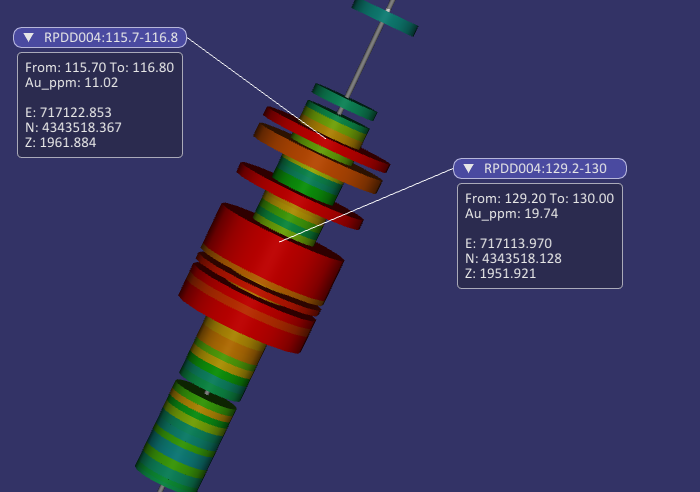
Each callout is drawn as a titled window with a line running from its title bar to the point it describes. The window stays at a fixed position on the screen while the line follows the point, so the callout stays legible as you orbit and zoom. The line attaches to whichever side of the window is closest to the point.
Drag the title bar to move a callout. Click the arrow at the left of the title bar to roll the callout up to just its title, and click it again to expand it. Positions are saved with the project.
Editing a Callout
Right click a callout to reveal three buttons:
- The eye button hides the callout. It can be shown again from the Information Manager.
- The pencil button switches the callout into edit mode.
- The trash button deletes the callout.
In edit mode the callout shows its contents as editable fields.
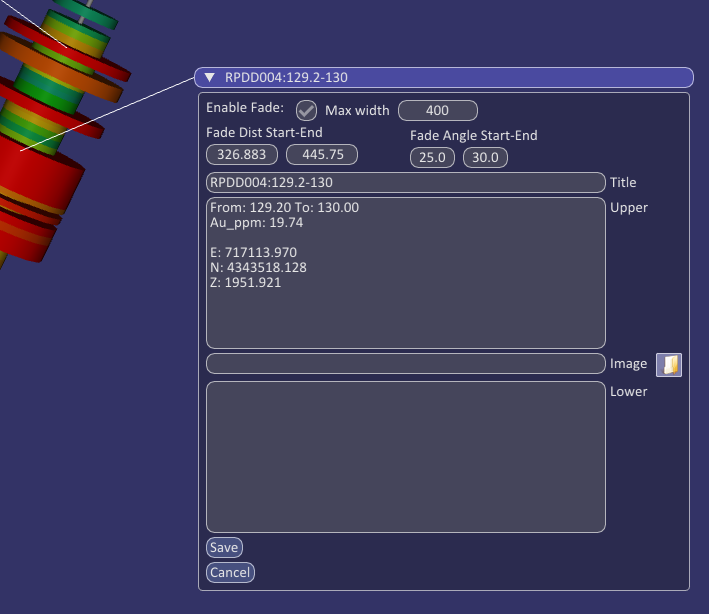
- Title is the line shown in the title bar, and the name the callout is listed under in the Information Manager.
- Upper is the text shown above the image. The information captured when the callout was created is placed here.
- Lower is the text shown below the image.
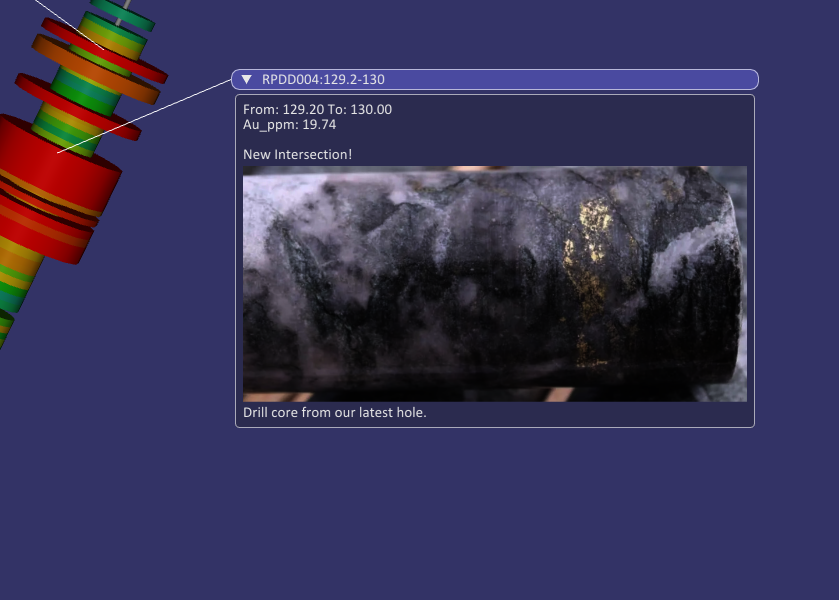
- Image is the path of a picture shown between the upper and lower text. Type the path or use the browse button. The image is scaled down to the callout's width when it is wider, and drawn at its own size when it is narrower.
- Show line draws the line from the callout to its point.
Either text block can be left empty, and both accept as many lines as you like.
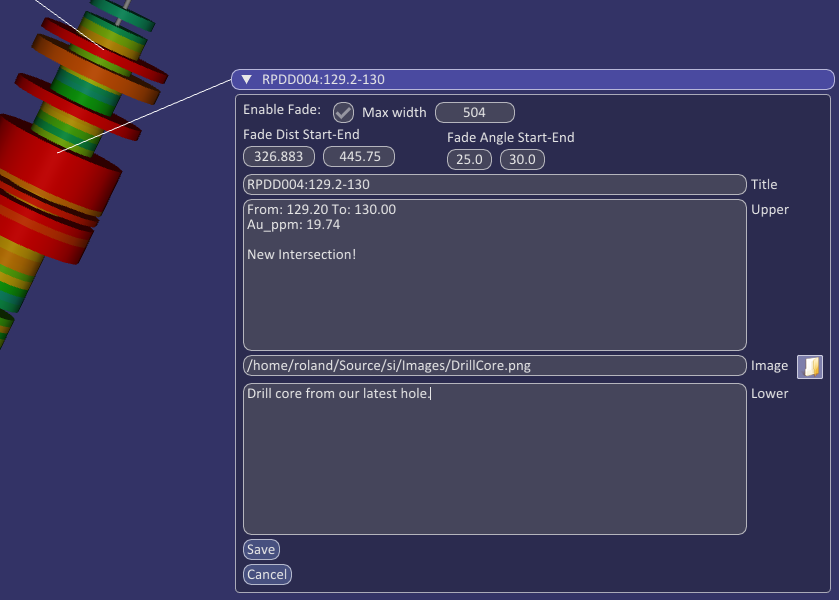
Click Save to keep your changes, or Cancel to discard them. The result is a callout carrying your own commentary and photograph alongside the data it points at.
Width
Max width sets the widest the callout may be, in pixels. Text wraps at this width and images are scaled down to it. Drag the value left and right to change it, or double click it to type a number. Use a narrow width for short notes, and a wider one for a photograph or a long description.
Fading
A scene with many callouts becomes cluttered, particularly when you zoom out. Fading lets each callout disappear when it is no longer relevant to the view. Tick Enable Fade to turn fading on for a callout; it is on by default.
- Fade Dist Start-End is the distance from the camera to the callout's point. Nearer than the first value the callout is fully drawn, between the two values it fades out, and beyond the second it is not drawn. These are set from your viewing distance when the callout is created.
- Fade Angle Start-End is the angle, in degrees, between the direction you are looking and the direction of the callout's point. Inside the first angle the callout is fully drawn, between the two it fades out, and outside the second it is not drawn. This clears away callouts at the edge of the view.
Both apply together, and the line fades with the callout. A callout being edited never fades away completely. The start value is always kept below the end value.
Information Manager
The Information Manager lists every note in the project, panels and screen callouts alike, in one table. Open it by right clicking the Information tool button, or with Information Manager... in the flyout beside that button.
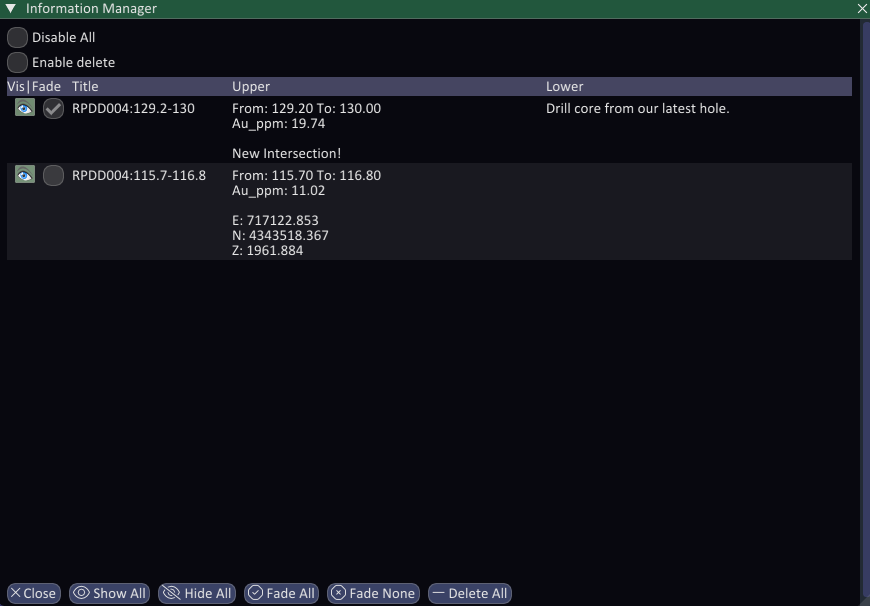
The table lists the title, upper text and lower text of each note. Hover over a row to highlight that note in the scene, and hover over a text cell to see all of its text.
Each row has these controls at its left:
- The eye button shows or hides the note.
- The tick box turns fading on or off for the note.
- The find button flies the view to the note. A panel is framed square on; for a screen callout the view pans to its anchor point, keeping the current direction and distance.
- For a screen callout, the box button turns it into a panel in the scene, facing the current view.
Ctrl+Zturns it back.
Double click the row of a panel to open its editor. Showing, hiding, deleting and draping can be undone with Ctrl+Z.
Above the table are two settings:
- Disable All hides every note at once without changing their individual settings, for example to clear the view for a screenshot. Untick it to bring them back. The setting is saved with the project.
- Enable delete adds a trash button to each row. It is kept behind this tick box so a stray click cannot delete a note.
Selecting Rows
Click a row to select it. Ctrl+click adds a row to the selection or removes it, and Shift+click selects every row between the last plain click and this one. Select All and Select None above the table do what they say, and the count beside them shows how many rows are selected.
Buttons
The buttons along the bottom act on the selected notes, or on every note when nothing is selected. Their labels change to say which:
- Show All / Show Selected and Hide All / Hide Selected show or hide notes.
- Fade All / Fade Selected and Fade None / Unfade Selected turn fading on or off.
- Delete All / Delete Selected deletes notes, after you confirm.
- Import Photos makes a panel for each of a set of photographs, placed where each was taken. See Importing Photos.
- Drape on Surface, at the right, needs a selection. Choose a surface in the window that opens and click OK: each selected note's anchor moves to the surface height at its easting and northing, and a panel moves with its anchor, keeping its offset. A note whose anchor misses the surface is left where it is, and the log says how many were moved. Each moved note is a separate step for
Ctrl+Z.
Importing Photos
Most cameras and phones record where a photo was taken as GPS tags in the picture file. Import Photos reads those tags and makes a panel for each photo at that position, so a set of site photographs can be added to the scene in one go.
Click the browse button and select the photos. Then choose how the panels are made:
- Panel width (m) is the width of each panel in the scene.
- Facing works as in the panel editor: Fixed faces the current view and keeps that orientation, Flag stays upright and turns to face you, and Billboard always faces the camera.
- Page only shows each photo by itself, with no title, border or background.
Click Import. Each panel links its photo, is titled with the photo's file name, and has the photo centred above the point. Panels can be edited afterwards like any other, and each is a separate step for Ctrl+Z.
A photo without a position is skipped, and the log names it. The altitude comes from the photo where the camera recorded one; otherwise the panel is anchored at a height of zero, which you can change in its editor. The project needs a coordinate system for the photos to be placed. The photos are read from where they are, so keep them with the project.