
Clip Objects
Clip objects restrict what is drawn. They help you see the information and relationships that matter to you in a crowded scene, for example a section through a block model and the drillholes along it.
You can combine several clip objects, and change their position and orientation while watching the result in the scene.
Clip objects are managed from the Clip Objects flyout on the right edge of the window.
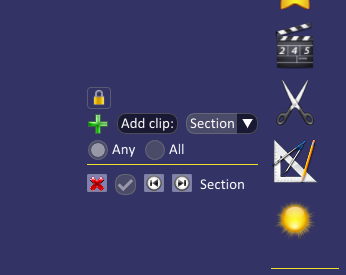
Each clip object in the list can be turned on and off with its checkbox, renamed with the pencil button, or deleted with the delete button. Clip objects are saved with your project.
Clip Object Types
- Plane: Show everything behind the plane.
- Section: Show everything within a set width either side of a plane.
Clip Modes
When several clip objects are enabled, the mode decides how they combine. You will usually use Any.
- Any: Parts of objects are shown if they lie within any of the enabled clip objects.
- All: Parts of objects are only shown if they lie within all of the enabled clip objects.
Adding and Adjusting a Clip Object
To add a clip object, choose its type from the dropdown, then click Add clip:. Drag the mouse across the scene to draw the clip plane. When you release the mouse the clip object is enabled with default settings.
Right-click a clip object in the list to open its settings. Change a value by dragging left and right in its box, or click in the box and type a value. Changes show in the scene immediately.
Clip objects can also be moved with the mouse. Select the clip object's name in the list, then:
- Hold the left
Ctrlkey and drag up and down with the left mouse button to move it forwards and backwards. - Hold the left
Shiftkey and drag left and right with the left mouse button to rotate it.
The Step value moves the clip object by a set amount from the keyboard. With a clip object selected, hold Ctrl and press the up and down arrow keys to move it forwards and backwards by the step, or the left and right arrow keys to rotate it. The forward and back buttons in the list do the same, and the step also sets how fast the clip object moves when you drag it with the mouse.
To control a different clip object with the mouse or keyboard, select its name in the list.
Excluding Layers from Clipping
Both layers and individual visualisations can be excluded from clipping, so they stay whole while everything else is cut. Right-click the layer or visualisation and tick Exclude from clip. To exclude only some of a layer's visualisations, leave the layer's Exclude from clip unticked and tick it on those visualisations.
To change every layer in a group at once, right-click the group and choose Exclude All from Clip or Include All in Clip.