
Place an Image Manually
Use Place Image... when an image is not georeferenced, or does not lie on an elevation surface, and you want to put it at a location of your choosing. Typical examples are drafted or scanned geological sections, scans of old mine workings, geophysics sections, or any other image or photo. Placed images can be of any size and resolution, in most image formats.
Hover over the Surface icon in the left panel, click Place Image... and choose your image. The Place Image dialog opens.
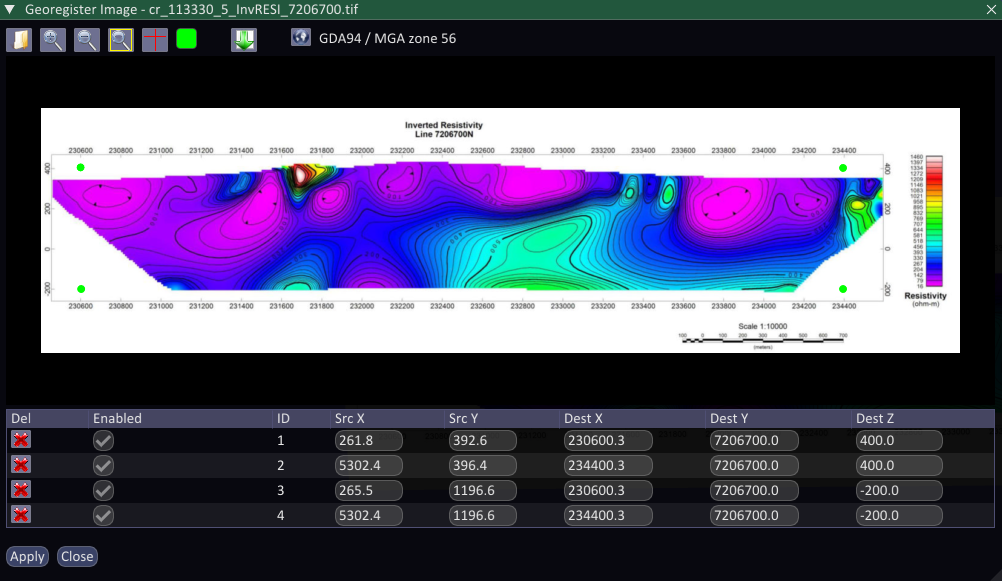
Adding control points
- Set the coordinate reference system of your control points with the CRS button at the top of the dialog. If Spatial Integration already knows a local grid, choosing it can make registering an image much quicker and easier.
- Find a point in the image whose coordinates you know. Zoom with the mouse wheel or the zoom buttons, and drag with the left mouse button to pan. The Toggle crosshairs button helps you line up points, which is especially useful when the image has grid coordinates around its frame but no full grid.
- Double click the point to add a control point, then type its coordinates in the table. Ctrl C and Ctrl V are handy for copying coordinates.
- Repeat for at least four points, spread well apart and close to the corners for best results.
- Click Apply. The image is placed in your scene.
If you already have control points in a .gcp file, load them with the import button on the toolbar. This replaces any points already in the table.
The control points are saved in the project and also in a file next to the image with the same name and a .gcp extension. If the image is large, overviews are built for it automatically and saved with an .ovr extension.
Adjusting a placed image
To correct the position of a placed image, double click its layer in the Surface flyout to open the Surface dialog. On the Image Sources tab, click the Configure button next to the image and then Georeference. Drag the control points in the image or edit their coordinates in the table, then click Apply to update the image in the scene.
Save the project to keep your changes.