
Channel Calculator
Note
Coming in Spatial Integration version 3.
Requires the Professional edition. In the Community edition, channels calculated with the Professional edition can still be viewed, edited and gridded like any other.
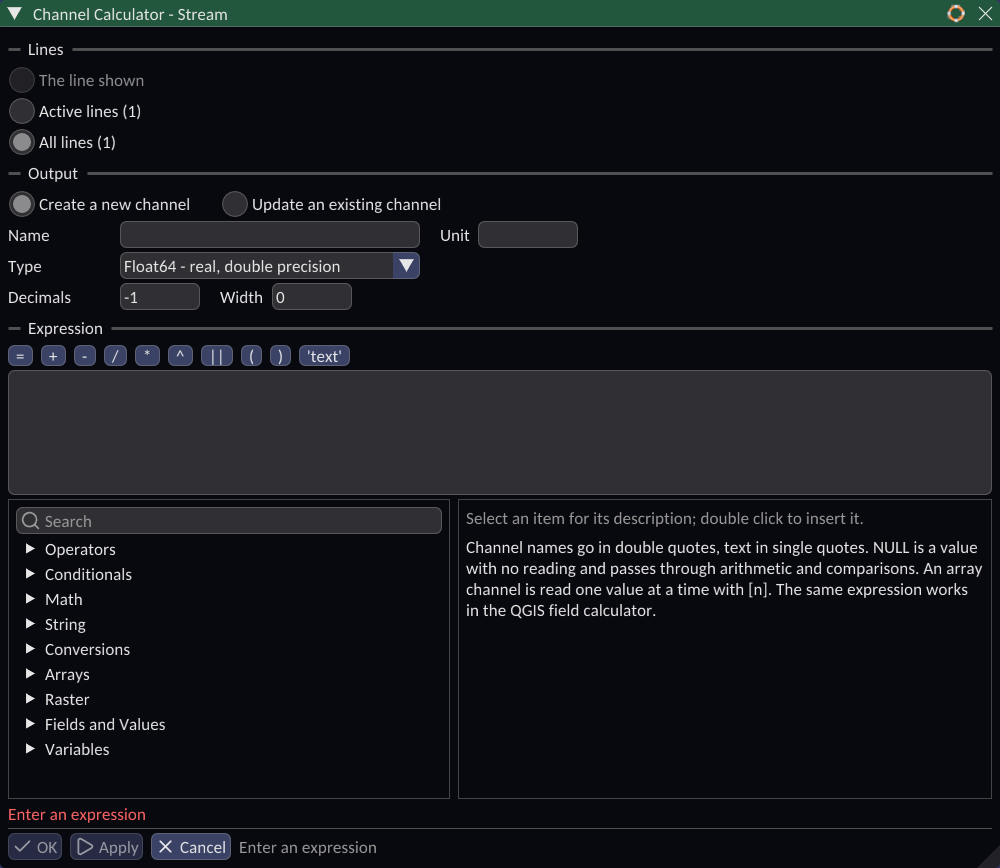
The Channel Calculator makes a new channel in a LineDB survey, or recalculates an existing one, from an expression over the survey's channels. Use it to convert units, combine channels into a ratio or an index, flag readings above a threshold, tidy sample names, take one gate of an EM decay, or sample a grid or surface at every fiducial.
Open it from the Attribute Table of a survey:
- the calculator button on the toolbar above the table,
- Process this survey, then Channel, then Calculate..., or
- right click a column header and choose Calculate..., which sets that channel as the one to update.
Each survey has its own calculator window.
Lines
Choose which lines are calculated: The line shown in the table, the Active lines ticked in the table's list, or All lines, inactive ones included. Lines outside the choice are left as they are.
Output
Create a new channel writes the result to a new channel:
| Setting | Meaning |
|---|---|
| Name | The new channel's name. It must not already be used in the survey. |
| Unit | The units of the result. |
| Type | How the values are stored: real numbers in double or single precision, integers of several sizes, or text. An expression that gives text needs the String type. |
| Bytes | For text: the most bytes a value may take. Longer text is cut. |
| Null value | For integers: the stored value that means no reading. Without one, an integer channel cannot hold a NULL result. |
| Decimals | Decimal places shown in the table, or -1 to leave it to the value. |
| Width | Column width in characters, or 0 for none. |
Update an existing channel replaces every value of the chosen Channel on the chosen lines.
Writing an expression
Type the expression in the Expression box. The buttons above it insert the common operators and a pair of quotes for text.
- Channel names go in double quotes:
"mag","Cu_ppm". - Text goes in single quotes:
'high'. - NULL means no reading. It passes through arithmetic and comparisons, so
"Cu_ppm" / 10000is NULL wherever Cu_ppm has no value. UseIS NULL,coalesce()orif()to handle it. - An array channel, such as an EM decay or a spectrum, is read one value at a time with
[n], counting from 0:"EM"[3]. - Function arguments can be named, in any order:
round(places := 1, value := "mag").
The expression language is the same as the QGIS field calculator's, so an expression written there works here.
The list below the expression box holds everything you can use, grouped as Operators, Conditionals, Math, String, Conversions, Arrays, Raster, Fields and Values (the survey's channels) and Variables. Type in the search box to find an item. Click an item to read its description beside the list; double click it to insert it at the cursor.
Preview shows the result for the first few fiducials of the line shown in the table, or what is wrong with the expression and where.
Examples
| Expression | Result |
|---|---|
"Cu_ppm" / 10000 |
Copper in percent from ppm |
"K" / "Th" |
A potassium to thorium ratio |
if("Au_ppb" > 100, 1, 0) |
1 for samples above 100 ppb, else 0 |
CASE WHEN "mag" > 100 THEN 'high' WHEN "mag" > 50 THEN 'mid' ELSE 'low' END |
A text class (needs a String channel) |
coalesce("Au_repeat", "Au") |
The repeat assay where there is one, otherwise the original |
array_mean("EM") |
The mean of every gate of an EM decay |
sample('DEM', 'bilinear') |
The DEM's height at each fiducial |
"height" - sample('DEM', 'b') |
Height above the DEM surface |
Operators
| Operator | Meaning |
|---|---|
+ - * |
Add, subtract, multiply. + joins two strings. |
/ |
Divide, always giving a real: 7 / 2 is 3.5. Division by zero is NULL. |
// |
Divide and round down to an integer: 7 // 2 is 3. |
% |
Remainder, with the sign of the left side. |
^ |
Power: 2 ^ 10 is 1024. |
= <> < <= > >= |
Comparisons, giving 1 or 0, or NULL when either side is NULL. != means the same as <>. |
AND OR NOT |
Logic. |
IS, IS NOT |
Equal or not equal, treating NULL as a value: "Au" IS NULL. |
IN |
In a list: "line" IN ('L10', 'L20'). |
BETWEEN |
Within a range, ends included: "mag" BETWEEN 100 AND 200. |
LIKE, ILIKE |
Matches a pattern, where % is any text and _ any one character. ILIKE ignores case. |
~ |
Matches a regular expression anywhere in the text. |
[n] |
One value of an array channel, counting from 0; a negative n counts from the end. |
CASE WHEN ... THEN ... ELSE ... END |
Choose a result by conditions. Without ELSE, no match gives NULL. |
Two vertical bars join values as text: 1 || 2 is '12', and the result is NULL when either side is NULL. Use concat() to treat NULL as empty text instead.
Functions
Conditionals
| Function | Result |
|---|---|
if(condition, when_true, when_false) |
One result or the other. NULL, 0, '' and 'false' count as false. |
coalesce(value1, value2, ...) |
The first value that is not NULL. |
nullif(value1, value2) |
NULL when the two are equal, otherwise the first. Useful to turn a dummy value such as -99 into NULL. |
Math
| Function | Result |
|---|---|
abs(value) |
The absolute value. |
sqrt(value) |
The square root. |
exp(value) |
e raised to the power of the value. |
ln(value), log10(value), log(base, value) |
Natural, base 10 and any-base logarithms. NULL for zero or a negative number. |
sin, cos, tan |
Trigonometry, with angles in radians. |
asin, acos, atan |
Inverse trigonometry, giving radians. |
atan2(dy, dx) |
The angle of dy/dx in the right quadrant, in radians. |
radians(degrees), degrees(radians) |
Convert between degrees and radians. |
floor(value), ceil(value) |
Round down or up to a whole number. |
round(value [, places]) |
Round to a number of decimal places, halves away from zero. Negative places round to the left of the point. |
pi() |
The value of pi, as $pi is. |
max(value1, ...), min(value1, ...) |
The largest or smallest of the values, skipping NULLs. |
clamp(minimum, value, maximum) |
The value held within a range. |
scale_linear(value, domain_min, domain_max, range_min, range_max) |
Rescale a value from one range to another. |
rand(min, max [, seed]) |
A random whole number from min to max, different on each fiducial. |
randf([min [, max [, seed]]]) |
A random real number, from 0 to 1 by default. |
String
| Function | Result |
|---|---|
upper(string), lower(string) |
The text in upper or lower case. |
trim(string) |
The text without blanks at either end. |
length(string) |
The number of characters. |
concat(value1, value2, ...) |
The values joined as text, with NULL read as empty text. |
regexp_match(string, regex) |
Where a regular expression first matches, counting from 1, or 0 for no match. |
regexp_replace(string, regex, replacement) |
The text with every match replaced. \\1 in the replacement is the first captured group. |
regexp_substr(string, regex) |
The part of the text that matches, or its first captured group. |
In a regular expression, write a backslash twice: '\\d+' matches a run of digits.
Conversions
| Function | Result |
|---|---|
to_int(value) |
A whole number, from a number or from text spelling one. |
to_real(value) |
A number, from a number or from text spelling one. |
to_string(value) |
The value as text. |
Arrays
| Function | Result |
|---|---|
array(value1, value2, ...) |
An array of the values. |
array_get(array, pos) |
The value at a position, counting from 0, as "channel"[pos] is. |
array_length(array) |
How many values the array holds. |
array_sum, array_mean, array_min, array_max |
The sum, mean, smallest or largest of the values, skipping NULLs. |
Raster
The raster functions read a grid or surface at each fiducial. The raster argument is the name of a raster or surface layer in the project, in single quotes, or the path of a raster file, which need not be loaded. Positions are in the survey's coordinate frame and are reprojected to the raster's as needed. The result is NULL off the raster or on a no data cell.
Most functions have two forms: one that takes an x and y, and a shorter one that uses each fiducial's own position.
| Function | Result |
|---|---|
sample(raster, method [, band]), sample(raster, x, y, method [, band]) |
The raster's value. method is 'nearest' (or 'n'), 'bilinear' ('b') or 'bicubic' ('c') for a smoother result. A surface is read as it is drawn, whatever the method. |
raster_slope(raster [, band]), raster_slope(raster, x, y [, band]) |
The slope of a height grid, in degrees from horizontal. The grid needs a projected CRS in the same units as its heights. |
raster_aspect(raster [, band]), raster_aspect(raster, x, y [, band]) |
The direction the slope faces downhill, in degrees clockwise from north. NULL on flat ground. |
raster_inside(raster), raster_inside(raster, x, y) |
1 when the position is within the raster, else 0. For a surface, 1 where it has a height. |
raster_bands(raster) |
How many bands the raster has. |
raster_width(raster), raster_height(raster) |
The raster's size in cells. |
raster_cell_size(raster) |
The width of a cell, in the raster's own units. |
raster_nodata(raster [, band]) |
The band's no data value, or NULL when it has none. |
raster_statistic(raster, band, property) |
A statistic of a whole band: 'min', 'max', 'avg', 'stdev' or 'range'. |
Bands count from 0.
Variables
| Variable | Value |
|---|---|
$x, $y, $z |
The fiducial's position, from the survey's current coordinate frame. $z is only there when the frame has a Z channel. |
@row_number |
The fiducial's position along its line, counting from 1. |
$id |
The fiducial's number within the whole survey, counting from 0. |
$pi |
The value of pi. |
Running the calculation
Click OK to calculate and close the window, or Apply to calculate and keep it open for another expression. When something is missing, such as a name for the new channel, the reason is shown beside the buttons. A long calculation shows its progress, and Stop cancels it.
The result is written to the LineDB file straight away. Any pending changes in the attribute table are saved first. Undo on the main toolbar takes the calculation back, unless the channel it replaced was too large to keep, in which case the message log says so.
Tip
To calculate with whole grids rather than survey channels, use Grid Maths.