
Elevation Surface
Note
Coming in Spatial Integration version 3: a flat surface from images alone, without any height sources.
The Community edition can add up to 2 image overlays per surface; the Professional edition up to 16. A surface with more overlays is still drawn in full in the Community edition, and every overlay can be shown, hidden and faded, but only the first 2 can be added, removed or configured. Streaming image sources and the QGIS Live Map require the Professional edition. In the Community edition they are kept in the project when it is saved, but are not streamed or drawn.
To create an elevation surface you need one or more georeferenced elevation grids and, optionally, georeferenced images. The grids and images can be in different coordinate reference systems (CRS), resolutions and file formats, and need not line up with each other.
Hover over the Surface icon in the left panel and click New Elevation Surface... to open the Surface dialog. Double click an existing surface in the Surface flyout to open the same dialog for it.
Surface settings
Name: new surfaces are called "Surface". Give each one a more meaningful name if you have several.
You can set the visibility and opacity of the surface here, but it is usually quicker to use the controls in the Surface flyout.
Default Height and Fill: with Fill ticked, parts of the surface with no data are filled at the Default Height. In a projected view the surface covers the extent of its height sources; in a globe view it covers the whole Earth. Fill is mainly used to give imagery something to sit on over gaps in SRTM data when showing the Earth as a globe.
Height Sources
On the Height Sources tab, click Add Height Source, choose an elevation grid and click OK. The grid must hold elevation values, not be a picture of elevation. If this is the first data in your project and the grid has a valid CRS, the project is set to that CRS. You can change it later.
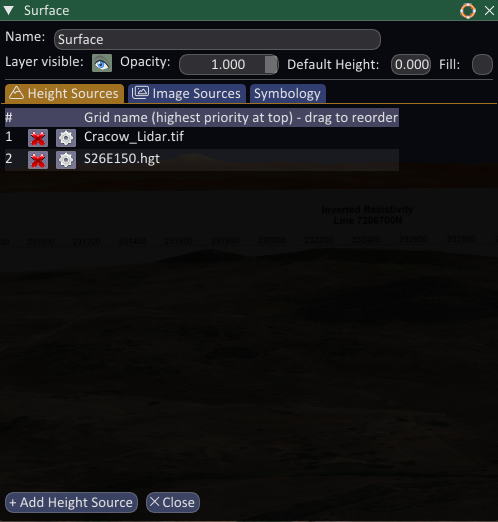
You can add several height sources: put the most detailed at the top of the list, where it takes priority. Drag rows to reorder them. The sources do not need to share a CRS. Large grids take a few moments the first time while overviews are built; these are compatible with other software such as QGIS, so this only happens once.
Remove a height source with the red cross next to it.
The Configure button next to each source lets you set its CRS if it is missing from the file or wrong, and set a No-Data value. The No-Data value is normally stored in the file and rarely needs setting.
Image Sources
On the Image Sources tab you add the images draped over the surface:
- Add Local Image: almost any georeferenced image format, with the coordinates stored in the file or in a world file. The CRS in the file is used if present, or you can set it.
- Add Server: tiles streamed from XYZ, TMS, WMTS and WMS servers. See Streaming Image Sources.
- QGIS Live Map: your current QGIS map, streamed onto the surface and updated as it changes. See QGIS Live Map.
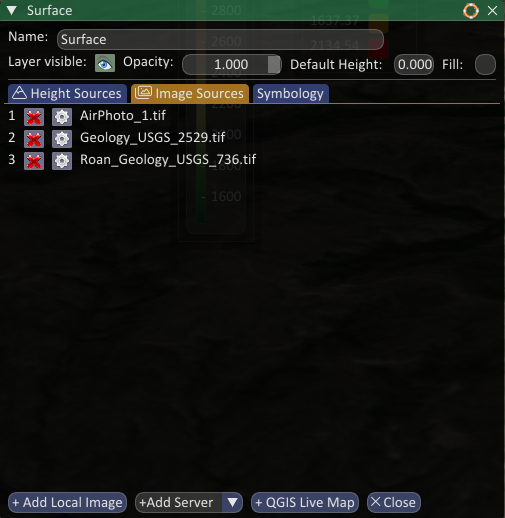
Order matters when images overlap or are blended with transparency: drag rows to reorder them. As with grids, images can be in different CRS and resolutions, and very large.
If you add georeferenced images without any height sources, the surface is a flat plane at the Default Height covering the combined extent of the local images. Change the Default Height to raise or lower the plane. Adding a height source replaces the plane with your elevation grids. Streaming sources do not count towards the extent of the plane.
Remove an image with the red cross next to it.
The Configure button next to each image lets you set its CRS if it is missing or wrong, and its opacity, although opacity is quicker to change from the Surface flyout.
No-Data colour: tick the box and choose a colour to make that colour transparent. This is applied as the scene is drawn, after the image has been smoothed between pixels, so the edges of no-data areas can look slightly feathered. Click Save to write the transparent colour into the image file, where possible, so it is applied when the image is read and the edges are clean. Images with lossy compression, such as JPEG, may not hold the no-data colour exactly, which leaves a noisy fringe around the image. The no-data colour is usually already stored in the image.
Symbology
If any of the surface is visible without an image over it, you may want to colour it by elevation. Do this on the Symbology tab.
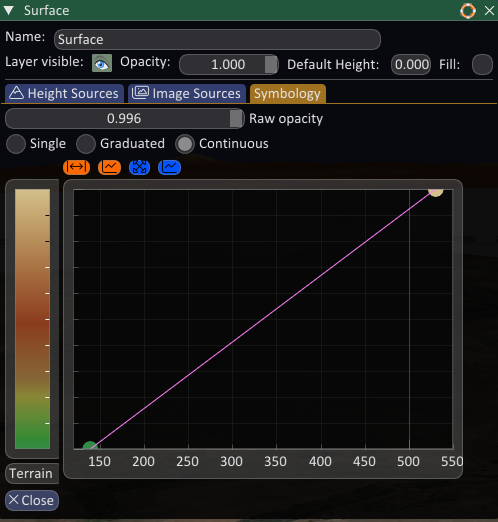
- Single: click the grey swatch and choose a colour.
- Graduated: colour the surface in elevation bands, like a contour map, by entering the band limits and their colours.
- Continuous: the easiest and most attractive way to show elevation. Click Linear transform from the data above the plot, then click the colour ramp name below the colour bar and choose "Terrain", or "Elevation" if you have water to show in blue (Elevation is Terrain with a thin band of blue at the lowest values). Drag the transform's anchor points to adjust the colours, double click to add a point, and right click a point to delete it.
Raw opacity sets the opacity of the parts of the surface not covered by images, and does not affect the images themselves. It is useful when you have a large elevation grid but are only interested in the small part of it under an image. It is only a visual effect: the status bar coordinates, the Information tool and the Measure tool still see the surface.