
Application Layout
Note
Coming in Spatial Integration version 3: the Point Cloud, LineDB and Geological Model data types, the Flythrough, Data Processing, Edit and Assistant tools, renaming layers, the vertical exaggeration slider, and the Edit and Sun buttons on the status bar.
Spatial Integration takes its inspiration from computer games, using the whole window to show what you want to see: your data. Menus fly out from the sides of the window when you move the mouse pointer against the edge.
The left panel is for loading and managing data, layers and visualisations. The right panel gives access to tools and settings. A thin status bar across the bottom of the window shows the pointer location, the coordinate reference system, tool buttons and log messages.
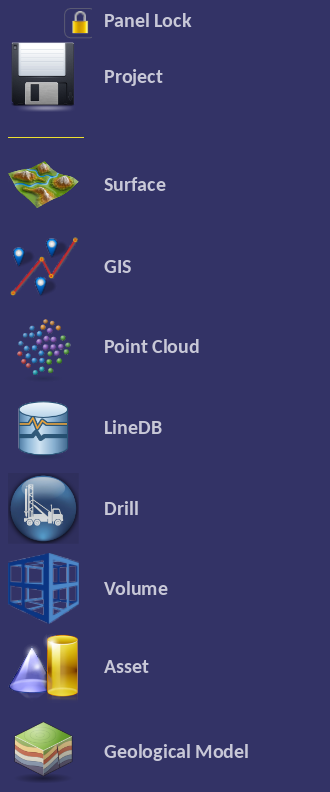
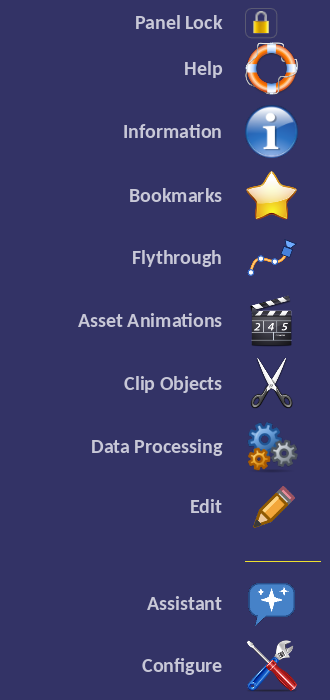
Every flyout has a Panel Lock pin at the top, which stops the flyout closing when the mouse leaves it.
Data Flyout
- Project: Open, create, save, package and close projects.
- Surface: Elevation surfaces with image overlays, manually placed images and SEGY seismic sections.
- GIS: Load, display and edit vector data from a range of GIS formats, such as GeoPackage and shapefile.
- Point Cloud: Load and display LAS and LAZ point clouds.
- LineDB: Import and display line and point data, from airborne surveys to CSV files of samples.
- Drill: Open and import drillhole databases and display drilling data.
- Volume: Load and display block models and other volume data.
- Asset: Load and display objects from a wide range of 3D formats.
- Geological Model: Build 3D geological models from your data.
Every layer in the data flyout has a right-click menu. From it you can rename the layer, exclude it from clipping, paste a copied style, add visualisations, rebuild the layer or delete it. Choose Rename... and the layer's name becomes a text box: press Enter or click away to keep the new name, or Escape to cancel. The name is saved with the project.
Tool Flyout
- Help: Show the Help contents page.
- Information: Turn the Information tool on and off, and manage information panels.
- Bookmarks: Save and return to views.
- Flythrough: Camera flights that also act as timelines, for presentations and video.
- Asset Animations: Play, pause and stop the animations embedded in loaded models.
- Clip Objects: Manage clipping objects such as clip sections and planes.
- Data Processing: Imaging, FFT filtering, minimum curvature gridding, kriging, grid merging and grid maths.
- Edit: Turn edit mode on and off, to edit vertices and features of editable layers.
- Assistant: Ask the AI assistant questions about your project, or ask it to do things for you.
- Configure: License, user interface, visualisation and processing settings, coordinate systems, the tile cache, streaming servers and the assistant.
Status Bar
The right-hand end of the status bar holds buttons for tools you use while looking at the scene. From left to right they are:

- Vertical Exaggeration: The VE slider stretches the scene vertically, and the 1x button resets it.
- Edit: Turn edit mode on and off.
- Legend: Turn the legend on and off.
- Measure: Turn the Measure tool on and off.
- Screenshot: Save an image of the current view.
- Graticule: Turn the reference grid on and off.
- Sun: Change the sun angle and lighting.
- Perspective: Draw the scene with a perspective camera.
- Orthographic: Draw the scene with an orthographic camera.
To the right of the buttons are the message icon, which shows the log messages, and the coordinate reference system of the project.
The Layer Control window is opened with the \ key.