
Package a Project
Packaging gathers a project and its data files into one folder so that they can be passed to someone else. Usually you zip the whole package folder before sending it, so the recipient can unzip it and open the project straight away.
Click Package... in the Project flyout to open the Package dialog.
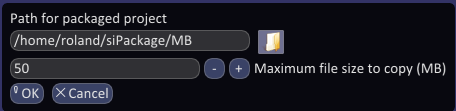
- Path for packaged project: click the folder button and choose an empty folder for the package. Make a new folder for each package; it cannot be the folder the project is in.
- Maximum file size to copy (MB): data files larger than this are not copied. Spatial Integration can use elevation grids and images of hundreds of gigabytes, and these are usually best left out of a package.
- Click OK.
A file that is too large to copy is still part of the packaged project, and its place in the package folder structure is still created. If the recipient already has a copy of the file, they can put it in the matching place in the package and it will be used as though it had been packaged.
Overview files (.ovr) for large grids and images are not packaged. Spatial Integration recreates them the first time the packaged project is opened.
Check the log messages afterwards: each file that was left out is reported there.