
Variogram Tab
Note
Coming in Spatial Integration version 3.
The Variogram tab is where you measure how your data behaves in space and turn that measurement into the parameters the interpolation will use. It is arranged as three numbered steps, and the order is deliberate:
- Experimental variogram - build the curve from your sample pairs. Done first on downhole pairs, because they are the only ones close enough together to reveal the nugget.
- Anisotropy scan - with the nugget pinned, measure how far continuity reaches in each direction.
- Model fit - fit a smooth model through the experimental points and hand its numbers to the Run tab.
If the terms in that list are new, read Kriging Concepts first.
The fields in step 3 are the model parameters used by the Run tab. There is no separate apply step: fitting a model changes what the next run will do.
Step 1: Experimental Variogram
Pair Mode
The estimator works on pairs of samples. Which pairs it is allowed to use changes what the resulting curve can tell you, and this is the single most important control on the tab.
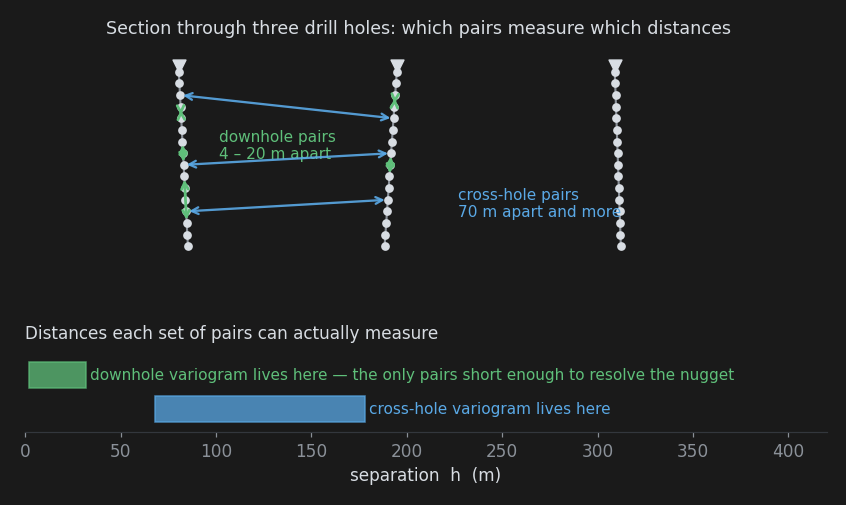
- Downhole only (same hole) uses only pairs from the same hole. In most drill programmes samples are a metre or two apart down the hole and a hundred metres apart between holes, so these are the only pairs that measure short separations - and short separations are where the nugget lives. Always start here.
- Cross-hole only uses only pairs from different holes. This isolates the between-hole structure without the downhole pairs dominating the first bins.
- Omnidirectional uses every pair regardless of direction. This is the general-purpose curve for range and sill, once the nugget is known.
- Directional keeps only pairs whose separation points along a chosen direction, within a cone. This is how you measure continuity along strike, down dip or down plunge by hand.
Because the downhole and cross-hole populations cover completely different distance ranges, a single omnidirectional variogram tends to show a nugget that is really the average of the short downhole structure. Measuring the nugget downhole and holding it fixed thereafter avoids that trap, and is why the tab opens on downhole mode with a lag distance taken from your sample spacing.
Lags
A lag is a distance band that pairs are grouped into.
- Lag distance is the width of each band. For downhole work, use something near the downhole sample spacing. For everything else, around half the mean hole spacing is a reasonable start. Both figures are on the Data & Grid tab.
- Lags is how many bands are used. Lag distance times lag count is the farthest separation considered - there is no point taking that much past half the size of your deposit, where pair counts collapse and the curve becomes noise.
- Lag tolerance is the half-width of each band around its centre. Left on Auto it is half the lag distance, so the bands sit edge to edge and every pair lands in one. Reducing it keeps only pairs near each band centre, which sharpens the curve at the cost of throwing pairs away.
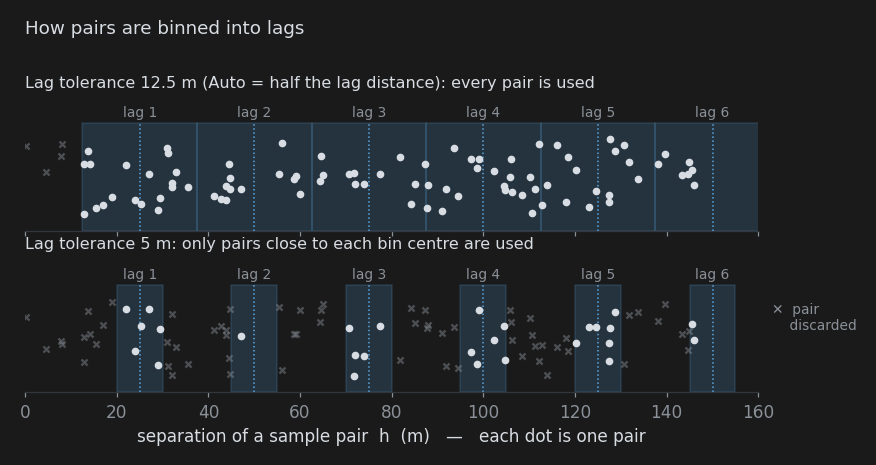
Getting the lag distance right is mostly a matter of watching the pair-count histogram under the plot. Too small, and each bin holds too few pairs and the curve jumps about. Too large, and real structure is averaged away - particularly near the origin, which is the part that matters.
Directional Settings
In Directional mode three more fields appear.
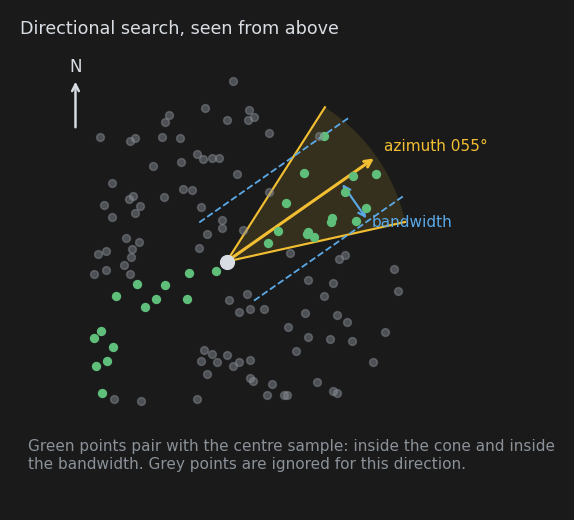
- Azimuth / plunge is the direction to measure along - azimuth clockwise from north, plunge positive downwards. A variogram is symmetric, so a direction and its opposite give the same answer; 055/35 and 235/-35 are the same search.
- Cone tolerance is the half-angle of the search cone. Narrow cones measure direction precisely but find few pairs; 22.5 degrees is a sensible compromise, and below about 10 degrees you will usually run out of data.
- Bandwidth caps how far a pair may sit from the cone axis, which stops the cone from growing uselessly wide at long separations. Zero means no limit.
For a systematic look at direction, use the step 2 scan instead - it does the same thing over a grid of directions in a single pass.
Computing and Reading the Plot
Compute variogram starts the calculation, with a progress bar and a cancel button. Every sample is paired with every other, so the time taken grows with the square of the sample count; above 20,000 samples a repeatable random subsample is used instead, and the plot says so in amber when that happens.
The result is drawn as two linked plots:
- The upper plot is semivariance against separation, with a dashed line at the sample variance for reference and, once you have one, the fitted model curve overlaid.
- The lower plot is the number of pairs in each lag.
Points from lags with fewer than 30 pairs are drawn as hollow amber circles, with amber bars beneath them. Do not fit to those - they are noise with a symbol on it. Lags with fewer than 10 pairs are dropped entirely, and if no lag reaches that threshold the plot is replaced by a warning telling you to widen the lag distance or add lags.
What you are looking for is a curve that rises from a modest intercept and flattens near the sample variance line. Common departures are worth recognising:
- Flat from the start, at the sample variance. No spatial structure at this scale - your samples are further apart than the range. Nothing will fix that but closer drilling, or working on a bigger-scale feature.
- Still rising at the last lag. The range is longer than the distances you have measured. Add lags before deciding on a range.
- Rising, flattening, then rising again. Two scales of structure, or a trend across the deposit. Consider the linear drift option on the Run tab, or a tighter domain.
- A dip back down at long separations. A cyclic or banded structure, often bedding. Fit the first flattening and ignore the rest.
Step 2: Anisotropy Scan
The scan fits a spherical model along each direction of an azimuth and plunge grid, and tabulates the ranges. The nugget is pinned first from a downhole variogram, because a nugget fitted independently in every direction absorbs the differences you are trying to measure.
The controls are:
- Lag distance and Lags - as in step 1, but applied to each scanned direction. Use the between-hole scale here.
- Azimuth / plunge step - the spacing of scanned directions. Azimuths run from 0 to just under 180 (by symmetry the other half repeats), plunges from 0 down to the maximum. Finer steps resolve the orientation better but multiply the work.
- Max plunge - how far below horizontal to look. Leave it at 60 for a plunging body; drop it to 0 to scan horizontal directions only, which suits flat-lying stratabound mineralisation.
- Cone tolerance - the half-angle of each direction's cone, as in step 1.
- Downhole lag - the lag distance of the downhole variogram the nugget is taken from. Set it near your downhole sample spacing.
All the directions, and the downhole variogram, are calculated together, so a scan takes about as long as one variogram rather than one per direction.
Reading the Results
Above the table, the downhole nugget is reported both as a value and as a percentage of the sample variance. That percentage is a useful summary in itself: below about 20% is well-behaved data, above 50% says most of your variability is noise or below-sample-scale, and any estimate will be very smooth.
The table lists each direction with its fitted range, partial sill and pair count. The longest range is highlighted in green, the shortest in amber. Underneath:
- Longest continuity and Shortest name those two directions.
- Anisotropy ratio is simply the longest range divided by the shortest - the headline number.
- Suggested ellipsoid is a proper ellipsoid fitted through all of the scanned ranges at once, given as azimuth, plunge, dip and two ratios. Because it uses every direction rather than just the extremes, its axes need not lie on the scan grid, it can resolve the roll about the major axis, and its ratios are usually gentler than the raw longest-over-shortest figure.
Apply to model parameters writes the suggested ellipsoid into the anisotropy used by the Run tab.
Treat the suggestion as a measurement to be checked, not an instruction. Compare it against the geology: if the scan says continuity runs 055 at 35 degrees down and your mineralised shoot plunges 30 degrees to the northeast, that is a good day. If it says something orthogonal to everything you know about the deposit, look for a drilling artefact - directions dominated by a single fence of holes, or too few pairs - before believing it. Sparse or noisy scans fall back to a simpler estimate with the dip left at zero, which is a hint to look at the table yourself.
See Anisotropy for what the angles and ratios mean and how to set them by hand.
Step 3: Model Fit
This step turns the experimental points into the three numbers the interpolation needs.
Model chooses the shape - spherical, exponential or gaussian. See Kriging Concepts for how they differ. The choice here also sets the Kernel on the Run tab, which offers several more shapes for finer control over smoothness.
Nugget, Partial sill and Range are the parameters themselves. You can type them directly - the model curve on the plot above follows as you edit - or let the fit find them.
Hold freezes the nugget during fitting. This is how the workflow carries the downhole nugget forward: fit it once on the downhole variogram, tick Hold, then recompute the variogram omnidirectionally and fit again for the range and sill.
Fit runs a weighted least squares fit, with each lag weighted by its pair count, and writes the answer straight into the fields. Weighting by pair count means the short lags - which carry the most pairs, and matter most - dominate the fit.
Judging a Fit
Underneath the buttons, two diagnostics update live as you edit:
- Weighted SSE, split into short lags and long lags at 40% of the maximum separation. The split is the useful part: a model can win on total error while missing the short lags badly, and short lags are what drive the estimate.
- First lag compares what the model predicts at the shortest separation against what the data shows there. When the model predicts three times the observed value or more, the line turns red - that is the wrong shape at the origin, whatever the totals say, and it will produce a visibly wrong estimate.
Compare models fits all three shapes to the same points and ranks them by weighted error, best first. All three have the same three free parameters, so comparing their errors directly is legitimate. Click any row to adopt that model and its parameters.
A closing warning about fitting in general: the fit optimises agreement with experimental points, and those points are only as good as the pairs behind them. A model that fits noisy long lags beautifully and misses the first two badly is worse than one that does the opposite. Look at the plot, not just the numbers.
Also See
- Anisotropy
- Run tab - what happens with these parameters
- Quality tab - whether the model was any good
- Troubleshooting