
A video tutorial is available for this topic.
Clip objects restrict what is rendered to the screen. They help you to see the information and relationships that are important to you in a crowded scene.
In Spatial Integration, you can mix and match multiple clip objects and dynamically vary the clip object parameters while watching the results right in front of you.
Clip tools are accessed from the Clip menu along the right edge of the screen.
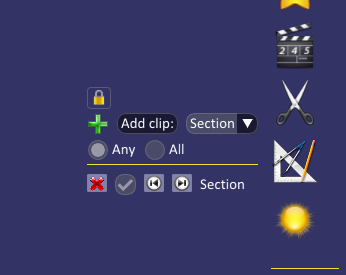
You can turn each clip object on and off as you please, or delete the clip object permanently using the red button in the list.
Clip objects are saved with your project.
Clip Object Types
There are different types of clip objects to choose from:
- Plane: Show everything behind the plane.
- Section: Show everything within a defined width of a plane.
Clip Modes
The clipping system has two modes of operation. You will usually use the Any mode
- Any: Portions of objects will be shown if they are located within Any of the enabled clip objects.
- All: Portions of objects will only be shown if they are within All of the enabled clip objects.
Operation
To add a clip object you select they type of object you want, then click the Add button. Drag the mouse to draw the clip plane on the screen. When you release the mouse a clip object will be enabled using default parameters.
Right click on the section in the clip object list to access the parameters. You can change parameters by dragging in the edit box left and right, or cliking in the box and typing a value. You changes are reflected in the scene immediately.
Clip objects can be moved using the mouse. To move the section forward and back, ensure the clip object label is selected in the list, then hold the CTRL button on the keyboard while left dragging the mouse up and down. You can also rotate the section by holding the SHIFT key on the keyboard and left dragging the mouse left and right.
The Step value lets you move the clip object a set amount using the keyboard. Hold the CTRL key while pressing the up and down arrows to move the clip object by the step value, or use the forward and back buttons in the clip object list. The step value also controls the speed of movement when using the mouse.
Multiple clip objects can be added the same way. If you want to control a different clip object with the mouse or keyboard, simply select its label in the list.
Excluding
Both layers and individual visualisations can be excluded from clipping. Simply right click on the layer or visualisation and select Exclude from clip. If you are controlling exclusions of individual visualisations, then deselect the layer Exclude from clip checkbox.
You can also set or unset Exclude from clip for all layers in a Group by right clicking on the Group and choosing the appropriate option.