
A bookmark records exactly where you are looking from and what you are looking at. It saves the camera location, the centre point of the view and the view direction, so you can return to that view later with a single key press or click.
Because the whole view is stored, a bookmark takes you back to the same position, orientation and zoom every time. Bookmarks are saved with your project, so they are still there the next time you open it.
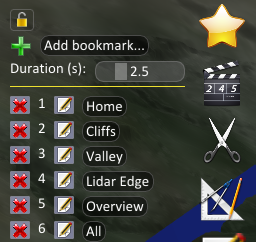
Bookmarks are accessed from the Bookmarks menu along the right edge of the screen.
Setting a Bookmark
Move the view to where you want it, then set the bookmark using either method:
- Click Add bookmark… in the Bookmarks menu.
- Hold the CTRL key and press a number key from 0 to 9.
Both methods open the Bookmark dialog where you give the bookmark a name. If you do not enter a name, a default one is created for you.
The dialog also has a Hot Key list where you can assign one of the number keys 0 to 9 to the bookmark, or leave it blank for no hot key. Setting a bookmark with CTRL and a number assigns that number automatically, replacing any bookmark that was already using it.
The Set to current button replaces the stored view with the view you are looking at now, keeping the same name and hot key. This is handy when a bookmark is nearly right and you just want to nudge it.
Going to a Bookmark
To travel to a bookmark:
- Press the number key 0 to 9 that was assigned to it.
- Or click the bookmark name in the Bookmarks menu.
The view flies smoothly from where you are to the bookmarked view rather than jumping, so you keep a sense of where you are in the scene.
More Than Ten Bookmarks
The number keys only give you ten bookmarks, but you are not limited to ten. Bookmarks created with Add bookmark… and left without a hot key are stored just like any other bookmark, and you travel to them by clicking them in the menu. Use hot keys for the handful of views you return to constantly, and the menu for everything else.
The hot key assigned to a bookmark, if it has one, is shown as a number beside it in the list.
Duration
The Duration (s) slider sets how long the flight to a bookmark takes, in seconds. Drag it left for a quick move and right for a slow, gentle sweep across the scene. The setting applies to all bookmarks, whether you use a hot key or the menu.
Editing and Deleting
Each bookmark in the list has two buttons to the left of its name:
- The pencil button opens the Bookmark dialog so you can rename the bookmark, change its hot key, or use Set to current to update the stored view. The dialog also has a Delete button.
- The red cross button deletes the bookmark immediately.
Presentations and Videos
Bookmarks are an easy way to navigate while you are talking to an audience. Set up the views you want to show beforehand, then step through them with the number keys instead of trying to fly the camera by hand in front of people. The movement between views is smooth and controlled, which looks far better than manual navigation.
For the same reason bookmarks work well when recording videos. Choose a longer duration for a slow cinematic move between viewpoints, and you get repeatable camera moves that you can record again if you need another take.