
Spatial Integration Link
The Spatial Integration Link serves your live QGIS map to Spatial Integration, which drapes it over a surface in 3D as a QGIS Live Map. Whatever the QGIS map canvas shows (layers, edits, symbology) appears in Spatial Integration and refreshes as you change it in QGIS.
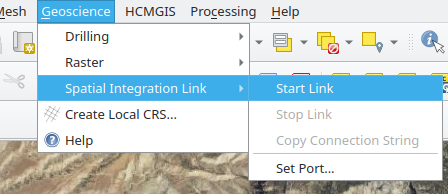
The link is a small tile server that runs on your own computer. It only listens on 127.0.0.1, so nothing is shared with other computers on your network.
Menu Commands
All the commands are under Geoscience > Spatial Integration Link.
| Command | Action |
|---|---|
| Start Link | Starts serving the map. A message bar shows the address it is running at |
| Stop Link | Stops serving the map |
| Copy Connection String | Copies the tile address (e.g. http://127.0.0.1:8089/{z}/{x}/{y}.png) to the clipboard. Available while the link is running |
| Set Port... | Sets the port the link listens on (1024 to 65535, default 8089). If the link is running, it restarts on the new port straight away |
The port is saved with your QGIS project.
What Is Served
The link draws exactly the layers that are visible on the map canvas, in the same order, so the tiles match what you see in QGIS. The link notices when you turn layers on or off, edit features or change symbology, so Spatial Integration can refresh the surface automatically.
Tip
A layer that takes a long time to draw slows every tile. If the map is slow to appear in Spatial Integration, turn off large or remote layers one at a time to find the culprit.
Connecting Spatial Integration
Start the link, then click QGIS Live Map on the Image Sources tab of a surface in Spatial Integration. See QGIS Live Map in Spatial Integration for the full steps, keeping the map up to date, changing the port and troubleshooting.