
Downhole Points
Downhole Points places a point at regular depths down each drill hole. Use it to label depth ticks on the drill traces, in plan or on sections.
Before using it, you must have desurveyed your drill holes.
Creating Downhole Points
- Choose Geoscience > Drilling > Downhole Points... or click the
 button on the toolbar.
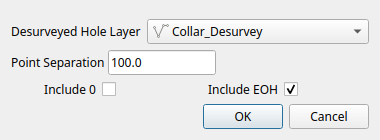
 - Select the Desurveyed Hole Layer.
- Enter the Point Separation, the distance down the hole between points. The default is 100.
- Check Include 0 to add a point at the collar.
- Check Include EOH to add a point at the end of the hole, even if it does not fall on a multiple of the point separation.
- Click OK.
A new layer named CollarLayerName_DepthTicks is created and loaded into QGIS. It is saved as a GeoPackage alongside the desurveyed hole layer. Each point is a 3D coordinate on the desurveyed trace, and has these attributes:
| Field | Contents |
|---|---|
CollarID |
The hole ID |
Depth |
The distance down the hole |
x, y, z |
The 3D coordinate of the point |
Tip
Label the layer with the Depth field to show depth ticks along your holes. The points are 3D, so you can include the layer in a section as well.
If you run Downhole Points again, the existing layer is replaced.