
Local Grids
Geoscience can create a Coordinate Reference System (CRS) for your local mine or exploration grid.
Once you have your local grid CRS, you can assign it to your vector or raster data, overlay local data on data in a standard CRS, reproject to a standard CRS, or even set the map canvas to your local CRS. You can do anything you would normally do with the thousands of CRS already defined in QGIS.
You need two or more points with known coordinates in both your local grid and a standard grid. Geoscience calculates the affine transformation between them and builds a Well Known Text (WKT) definition of your grid, which you can add to QGIS as a custom CRS. With three or more points the definition is three dimensional, so make sure the points have a good spread of Z values as well. If the coordinates contain errors, Geoscience uses a best fit.
Creating a Local CRS
Choose Geoscience > Create Local CRS..., enter the Name of local CRS and select the Base Projected CRS. The base CRS must be projected, not geographic, which usually means it uses eastings and northings rather than latitude and longitude. Then enter the coordinates of each point in both the base and local grids.
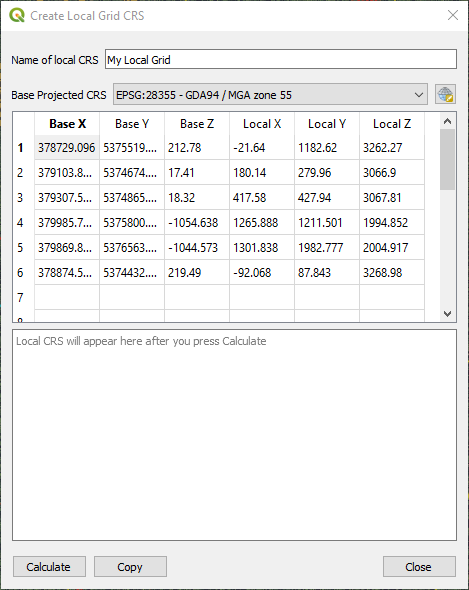
Click Calculate. The WKT definition of your local CRS appears in the box. Click Copy to copy it to the clipboard, then close the dialog. Paste the definition into a text file for safe keeping before you go any further!
In QGIS, choose Settings > Custom Projections..., click the add button and type in the name of your local CRS. Make sure the Format is set to WKT, then paste your definition into the box. Click Validate to check it, then OK.
Important
Check some of your known points to make sure your new CRS works properly before you rely on it! It has only been tested on a small number of local grids.
You can now use your local CRS just like any other CRS in QGIS.
Acknowledgements
Thanks to Gabriel De Luca for publishing instructions on creating an affine CRS, and for the affine source code: https://github.com/gabriel-de-luca/simil