
QGIS Live Map in Spatial Integration
The QGIS Live Map shows your current QGIS map draped over a surface in Spatial Integration, in 3D. Whatever the QGIS map canvas shows (layers, edits, symbology) appears on the surface and refreshes as you change it in QGIS. It uses the Spatial Integration Link in the Geoscience plugin.
Note
The QGIS Live Map requires the Professional edition of Spatial Integration. In the Community edition, a QGIS Live Map in a project is kept when the project is saved, but is not streamed or drawn.
Setting Up the Link
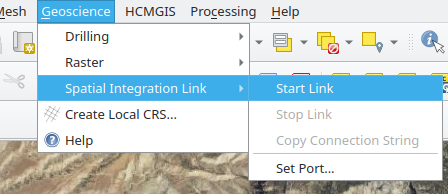
- In QGIS, open your project and choose Geoscience > Spatial Integration Link > Start Link. A message bar shows the address the link is running at.
- In Spatial Integration, open the Surface dialog for your surface and, on the Image Sources tab, click QGIS Live Map. The source is already set up, so there is nothing else to configure.
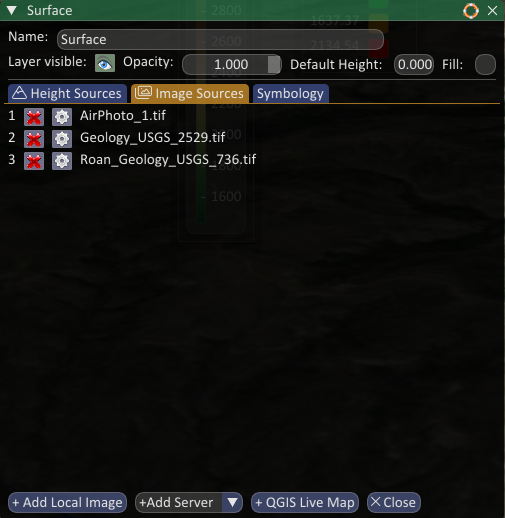
The map appears on the surface within a few seconds. It is drawn with the layers visible on the QGIS map canvas, in the same order, so turn on exactly what you want to see in 3D. The CRS of the QGIS map doesn't matter: the map is served in Web Mercator and Spatial Integration reprojects it to suit your project.
Keeping in Step with QGIS
In Spatial Integration, open the Configure dialog, choose the Streaming tab and select QGIS Live Map in the list of servers. Tick Refresh automatically when the QGIS map changes. The surface then updates within a second or so whenever you turn layers on or off, edit or restyle in QGIS, with no need to refresh it yourself.
Changing the Port
The link listens on port 8089 unless you change it. Use a different port if another program already uses 8089, or if you want to run two copies of QGIS.
- In QGIS, choose Geoscience > Spatial Integration Link > Set Port... and enter the new port. The port is saved with your QGIS project.
- In Spatial Integration, open Configure > Streaming, select QGIS Live Map and change the port in the Image URL (the
8089inhttp://127.0.0.1:8089/{z}/{x}/{y}.png) to match, then click Apply and Save.
Tip
Geoscience > Spatial Integration Link > Copy Connection String copies the exact Image URL QGIS is serving, ready to paste into Spatial Integration.
If the Map Does Not Appear
A warning icon next to the image source name in Spatial Integration means it cannot reach QGIS. Check each of these:
- QGIS is open and the project you want to see is loaded.
- The link is started: Geoscience > Spatial Integration Link > Start Link. The menu shows Stop Link while it is running. If the link cannot start, the message bar says why; usually another program is using the port, so choose another one.
- The port matches. The port in the Image URL in Spatial Integration must be the port QGIS is serving on.
- A slow layer is not holding things up. A QGIS layer that takes a long time to draw can make the requests time out. Turn off large or remote layers one at a time to find the culprit.
The warning clears by itself within a second of the link becoming reachable again.
See QGIS Live Map in the Spatial Integration help for more about image sources on surfaces.