
Sections
Before creating sections, you must have processed your drill holes.
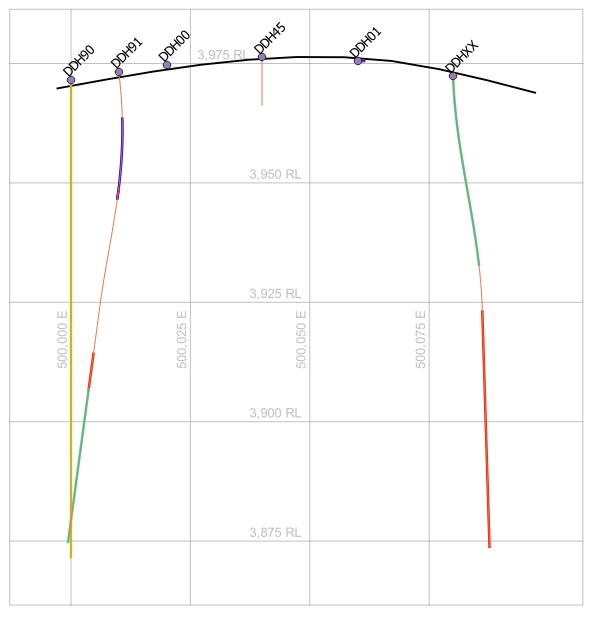
A section is defined by its start and end coordinates, its width and the layers to include. Its contents are transformed to a new coordinate system: X is the distance along the section from the start point, and Y is the real elevation calculated when the holes were desurveyed. This means sections are displayed on the same map canvas as the rest of your data. They are usually well away from your plan data, so the two don't get in each other's way. If your plan data uses coordinates near 0E, 0N, put it all in one group in the Layers panel so you can switch it on and off easily. Sections are placed in their own Sections group automatically.
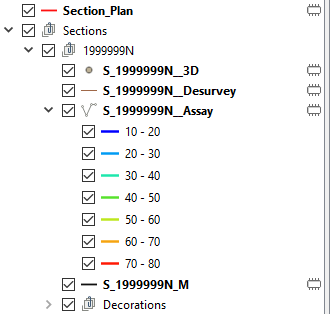
Geoscience stores everything it needs to recreate a section in your QGIS project file. Section layers are Memory Layers, so they are lost when QGIS closes, but you can easily recreate them when you open your project again. Similarly, you can remove sections from the Layers panel and regenerate them later. The only way to delete sections permanently is via the Section Manager.
Section Manager
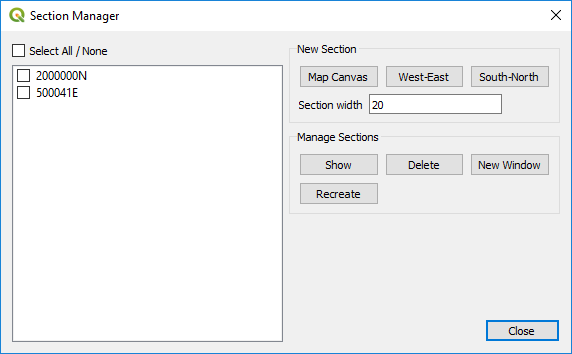
The Section Manager lists all your sections under Manage Sections. Double click a section, or select it and click Show, to display it. Click New Window to open the selected section in a separate window, with its own zoom and pan tools, so you can view it alongside your plan map.
The Sections group in the Layers panel is mutually exclusive, so only one section is shown at a time. You can also switch between sections by checking their groups in the Layers panel.
To Recreate or Delete several sections at once, check their boxes, then click the button. When you recreate a section, Geoscience replaces the empty Memory Layers left in the section's group and leaves any other layers alone. This means you can keep your own layers, such as interpretation layers, in the section group, and the Geoscience layers are recreated around them.
Sections are normal QGIS layers, so you can style and label them as usual, and use a print layout to make scaled, annotated plots.
Geoscience adds three grids and a border to every section, in a Decorations group so you can turn them on and off together. The grids show where lines of Easting, Northing and Elevation cross the section. If your section runs close to west-east or south-north, the grid that would be almost parallel to it is turned off by default. You can turn each grid and the border on or off separately.
Creating a Section
Tip
A new section copies the style of your downhole data layers. Set up those styles before you create sections. If you change them later, recreate the sections to pick up the new styles.
- Open the Section Manager by choosing Geoscience > Drilling > Section Manager... or clicking the
 button on the toolbar.
 - Enter the Section width.
- Choose one of three ways to create a section:
- Map Canvas: draw the section line on the map with the mouse.
- West-East: enter the Northing of the section and its west and east limits.
- South-North: enter the Easting of the section and its south and north limits.
- For Map Canvas, click and drag on the map from one end of the section to the other. A box the width of the section follows the mouse to guide you. The section is defined when you release the mouse button.
- A dialog then asks for a section Name and the layers to include. Check the downhole data layers and elevation rasters you want, then click OK. Only vector layers with 3D coordinates and single band rasters are listed.
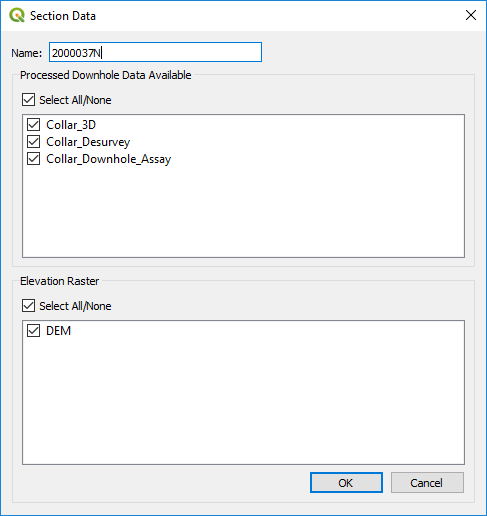
A section can take a while to create if you have a lot of drill holes. When it is finished, the section is added to the Section Manager, a new group for it is added to the Layers panel and the map zooms to it.
Section Interpretation
You can use the standard QGIS tools to interpret sections. Create a new vector layer and drag it into the section's group with the other layers, so it turns on and off with the section.
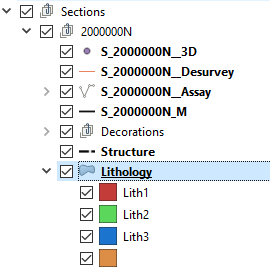
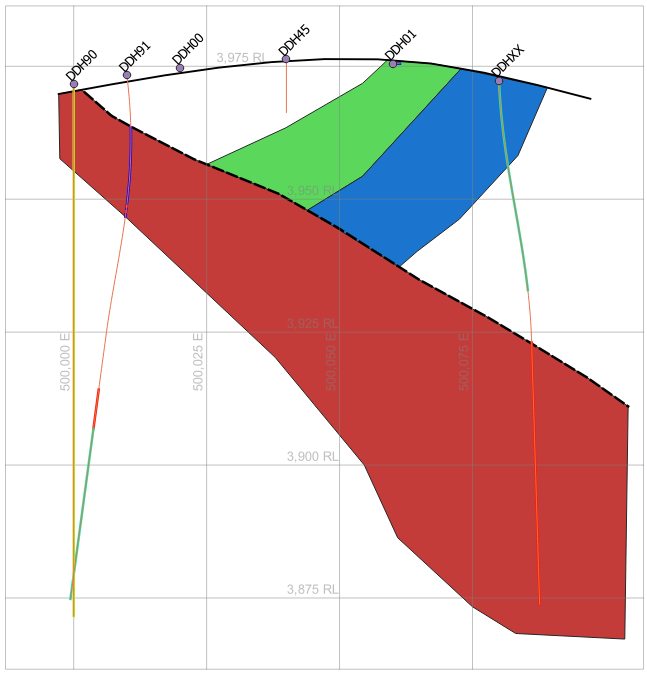
Save your interpretation layers to files (e.g. GeoPackage) and they are kept with your project. When you reopen the project and recreate the sections, the Geoscience layers replace the empty placeholders and each section is back the way you left it.
Warning
Don't delete a section in the Section Manager if it has interpretation layers. If you do, you will have to create the section again and move your interpreted features to match it.