
Processing Drill Holes
Geoscience includes tools to display drill holes, downhole data and sections in QGIS. Holes are desurveyed using the collar azimuth and dip, survey data, or both.
Before using the drill tools, open the collar table in QGIS, plus any survey and downhole data tables you have. You can use any format supported by QGIS, including shapefiles, MapInfo Tab files or CSV files. To open CSV files, use the existing Delimited Text tool  .
.
Note
Geoscience doesn't support database layers. If your data is in a database, first export your layers as GeoPackage, Shapefile, CSV etc.
Important
The drill tools only work with projected coordinate systems (e.g. UTM), not latitude and longitude.
Geoscience names the layers it creates after your original layers, so give your files short, simple names (e.g. Collar.shp, Assay.csv). Don't rename the layers and files that Geoscience creates, or it may not be able to find them again.
Tip
There are collar, survey and assay CSV files, plus a raster DEM, in the testdata directory under the plugin installation directory, if you just want to try out the drill hole tools.
The steps below display the drill traces in plan. You need to follow them before you can create sections.
Load Data
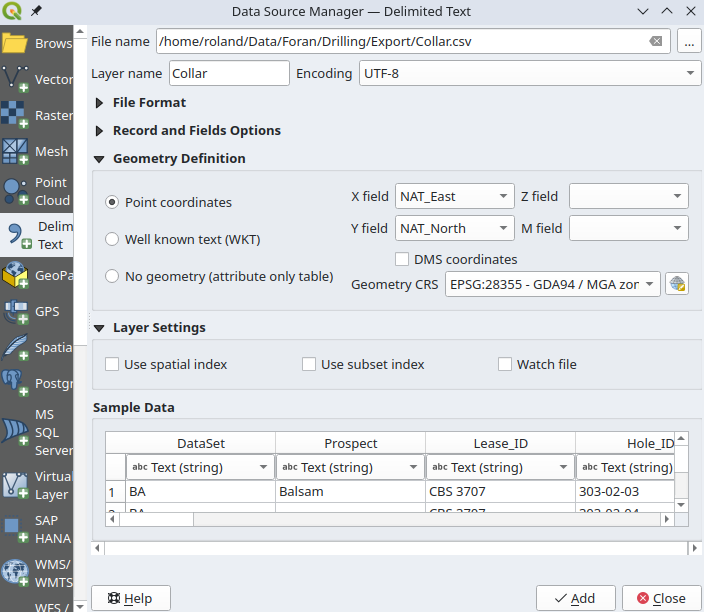
- Open the Collar layer. If using the Delimited Text tool in QGIS, select Point Coordinates, choose the Easting and Northing columns, then set the Coordinate Reference System. Leave the Z and M fields empty, because Geoscience expects a 2D layer.
- (Optional) Open the Survey layer. If using the Delimited Text tool in QGIS, select No Geometry to just import the data columns.
- (Optional) Open the Downhole data layers. You can use multiple layers (e.g. lithology and assay). If you are using the Delimited Text tool in QGIS, select No Geometry to just import the data columns.
Desurvey Holes
- Choose Geoscience > Drilling > Desurvey Holes... or click the
 button on the toolbar.
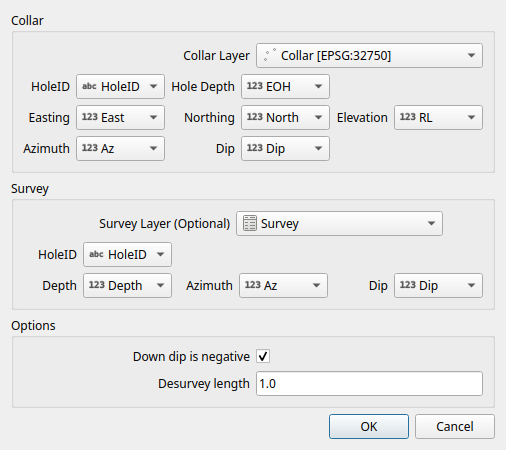
 - Select the Collar Layer and its fields, then the Survey Layer and its fields if you have one. Geoscience fills in the fields for you if they have sensible names.
- Leave Down dip is negative checked if downward dips are negative (e.g. -60 for a hole dipping 60° down). Uncheck it if downward dips are positive.
- Enter the Desurvey length. Each hole is rebuilt from straight line segments of this length.
- Click OK. A new layer named
CollarLayerName_Desurveyis created and loaded in QGIS, showing the drill traces in plan.
Want to know more about desurveying drill holes?
Process Downhole Data
- Choose Geoscience > Drilling > Downhole Data... or click the
 button on the toolbar.
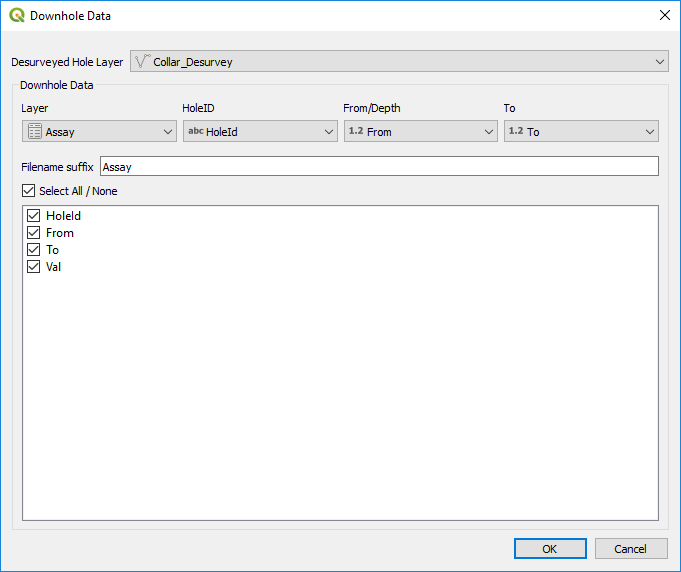
 - Select the Desurveyed Hole Layer. You can have several sets of drill holes loaded at once, so make sure you pick the right one.
- Choose the downhole data Layer and its HoleID, From/Depth and To fields. Geoscience fills in the fields for you if they have sensible names.
- Enter a short Filename suffix that describes the data (e.g.
Lith,Assay,MagSusc). - Check the attribute fields to include in the new layer. You will use these to style the drill traces, so include everything you need.
- Click OK. A new layer named
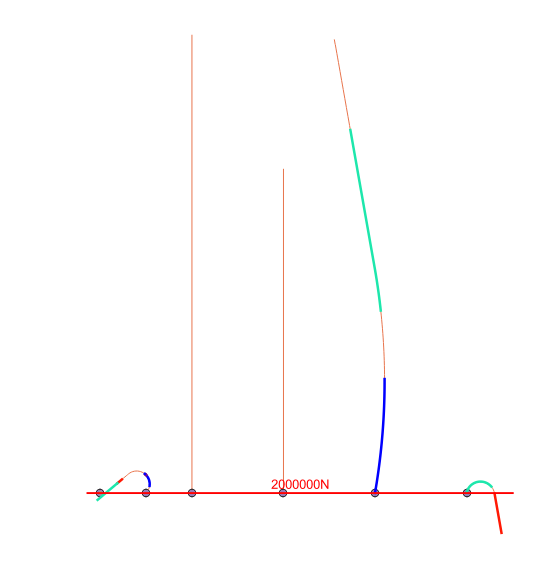
CollarLayerName_Downhole_Suffixis created and loaded into QGIS. It contains one line for each From-To interval in the data layer. - Style the new layer to display the attributes the way you want.
To mark depths along the holes, see Downhole Points. You are now ready to create sections.