
The legend explains what the colours and symbols in your scene mean. It lists every visible layer, grouped the same way as your project, and shows the colour bars, category tables and graduated tables that each visualisation is using.
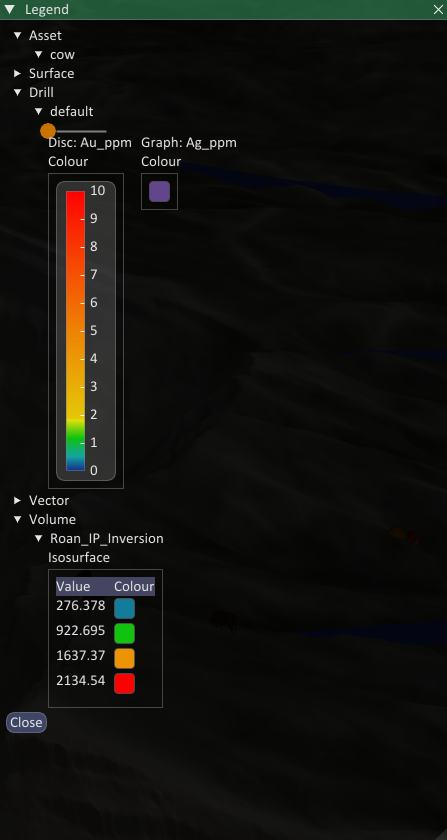
Showing the Legend
Toggle the legend using the legend button on the status bar, or by pressing the L key.

The status bar buttons are, from left to right: legend, measure, screenshot, graticule, perspective view and orthographic view.
The legend only lists things you can currently see. Hidden groups, layers and visualisations are left out, so the legend always matches what is on screen. Groups and layers can be expanded and collapsed using the arrows, and the expanded state is remembered with your project.
Legend entries are live. If you change a colour ramp, add a category or reclassify an attribute, the legend updates immediately.
Editing Symbology from the Legend
In most cases you can change symbology directly in the legend rather than opening a configuration dialog. Click a colour swatch in a category, graduated or isosurface legend to open the colour picker, and the scene updates as soon as you choose a colour. This is the quickest way to tune the appearance of your data while you are looking at it.
Legend Popouts
Legend items can be pulled out of the main legend window and placed anywhere around the view, so the key sits next to the data it describes.
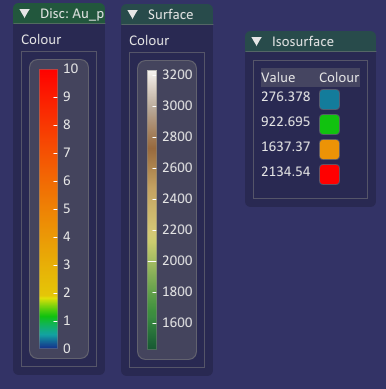
To create a popout, press the left mouse button on a legend item, on the border or background around the item rather than on a control inside it, and drag it away from the legend window. Once you drag far enough the item tears off and follows the mouse. Release the button to drop it where you want it.
Popouts behave the same way as the item in the main legend:
- They update automatically as the data or symbology they represent changes.
- You can edit colours directly in the popout, just as you can in the main legend.
- They are drawn semi transparent so they stay unobtrusive over the scene.
A popout is tied to the visualisation it came from. Its visibility follows that visualisation in the scene, so hiding a layer or a visualisation hides its popouts, and showing it again brings them back in the same place. The main legend does not need to be open for popouts to be shown.
Popouts can be moved at any time by dragging their title bar. Their position and open state are saved with your project, so your arrangement is restored the next time the project is opened.
Rolling Up and Closing Popouts
Click the arrow at the left of the popout title bar to roll it up, leaving just the title bar visible. Click the arrow again to expand it.
Hover the mouse over a popout to reveal the close button at the right of its title bar. Click it to remove the popout. Dragging the same item out of the main legend again brings it back at its previous position.