
You must have a license to use Spatial Integration, even if using the Community Edition.
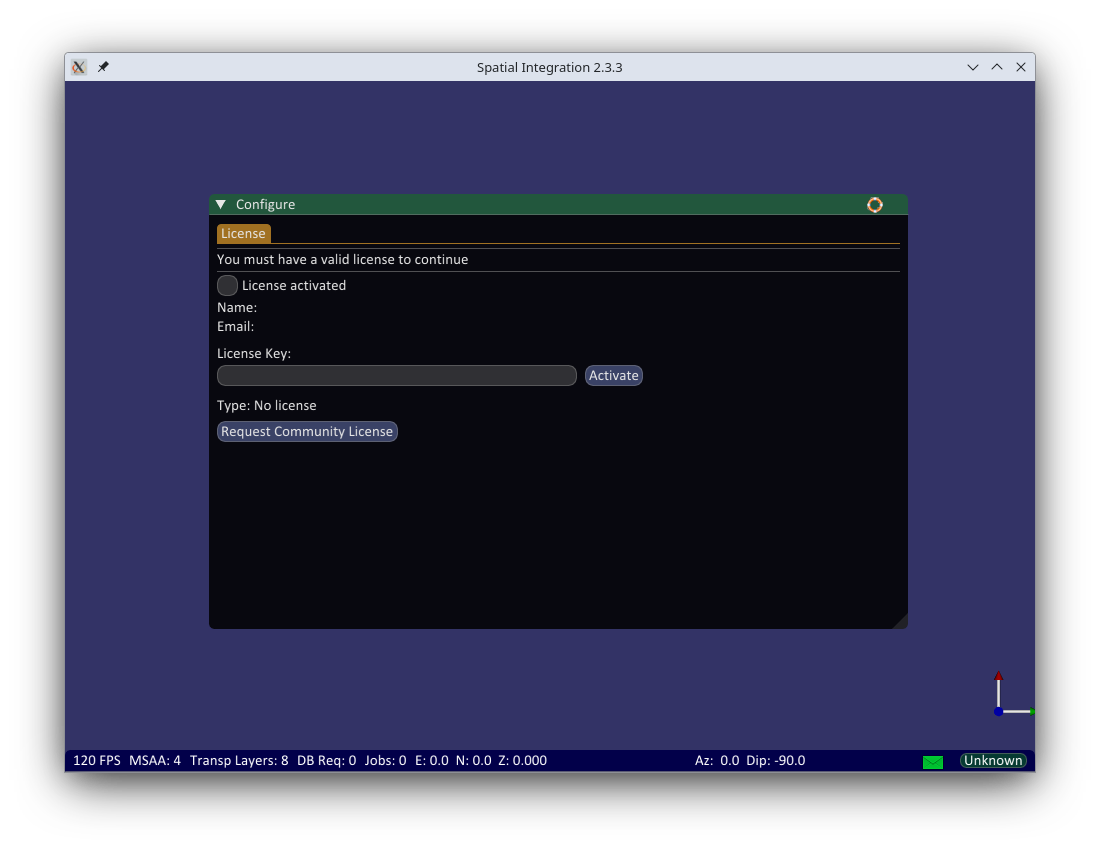
You can request a Community Edition license directly from the License Settings dialog in Spatial Integration. Simply click the Request Community License button, enter your name name and email address, then click Send Request. Within a few minutes you will receive an email with your license key.
To request a Professional license, please contact us at licensing@fourwindstechnology.com. A Community Edition license can be upgraded to Professional quickly and easily.
Editions
Spatial Integration is available in two editions; Commmunity and Professional.
The expectation is that anyone using Spatial Integration in a professional manner should be subscribing to the Professional version. The Community edition is designed to be useful if you have the occassional need to view some data in 3D and as a trial for the Professonal edition. Community edition has some limitations:
Category |
Professional Edition | Community Edition |
|---|---|---|
| QGIS Live Link | Yes | No |
| Surface overlay images | 16 | 2 |
| Surface overlay streams: WMS, XYZ, TMS, WMTS (Google Maps, Gov Geology etc) | Yes | No |
| Volume (Isosurfaces and Blocks) | Yes | No |
| Drill Groups | Unlimited | 1 |
| Drill graphs | Yes | No |
| SEGY Import / Display | Yes | No |
License Activation
Enter the activation key that you received after requesting your license into the box (note that you can use CTRL V to paste it from the clipboard) and click the Activate button. Check that the details of your license are correct, then click Save and close the Settings window.
Your activation key will look similar to this: BA52E0-E5D59E-22A33B-FBCADE-8C271C-V3
Machine Limit
A Professional license may be activated on a maximum of 2 machines at any one time. This allows you to work on, for example, both a desktop and a laptop with the same license.
The first two machines on which you enter your license key are activated automatically. If you try to activate the license on a third machine, activation will fail and Spatial Integration will tell you that the machine limit has been reached. It will continue to run as the Community Edition on that machine.
Deactivating a License
If you want to move your license to a different machine, you must first deactivate it on a machine you are no longer using. On that machine, open the License Settings dialog and click the Deactivate This Machine button, then confirm.
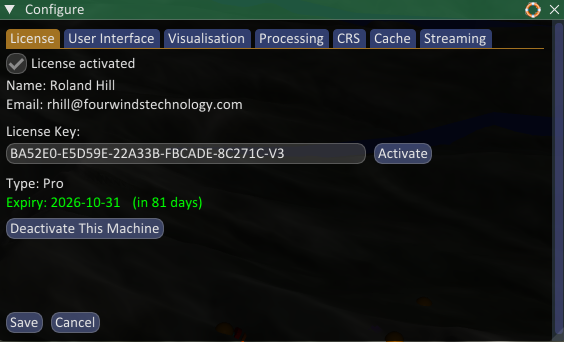
Deactivating releases one of the two machine slots so that the license can be activated elsewhere. The machine you deactivated reverts to the Community Edition. To use the license on that machine again later, simply re-enter your license key and click Activate (as long as a slot is free).
If you no longer have access to the machine, for example because it was replaced, lost or has failed, then contact us at licensing@fourwindstechnology.com and we will release the machine slot for you.
License Checking
Spatial Integration will contact the license server periodically to update and confirm your license. If the license server is not contactable, then cached license information will be used until your license expires, when Spatial Integration will revert to the Community Edition.
EULA
This End User License Agreement ("Agreement") is a legal agreement between you (either an individual or an entity) ("User") and Four Winds Technology Pty Ltd ("Licensor"), governing the use of the software product \i Spatial Integration\i0 ("Software"). By installing, accessing, or using the Software, you agree to be bound by the terms of this Agreement.
- LICENSE GRANT
- Subject to the terms of this Agreement, Licensor grants the User a non-exclusive, non-transferable, revocable license to use the Software on a subscription basis.
- The Software is licensed, not sold, and all rights not expressly granted herein are reserved by Licensor.
- SUBSCRIPTION TERMS
- The Software is provided on a subscription basis. The User must maintain an active subscription to continue using the Software.
- Failure to renew the subscription will result in termination of access to the Software.
- RESTRICTIONS
- The User shall not: a) Modify, reverse engineer, decompile, or disassemble the Software; b) Rent, lease, sublicense, distribute, or transfer the Software to a third party; c) Use the Software for any unlawful or unauthorized purpose.
- OWNERSHIP AND INTELLECTUAL PROPERTY
- The Software and all intellectual property rights therein remain the exclusive property of Licensor.
- This Agreement does not grant the User any rights to Licensor’s trademarks or other proprietary information.
- The Software contains open source components that are subject to their respective licenses. The User acknowledges that such components are governed by their respective open source licenses, which may grant the User additional rights or impose additional restrictions.
- DISCLAIMER OF WARRANTIES
- The Software is provided "AS IS" without warranties of any kind, whether express, implied, or statutory, including but not limited to merchantability, fitness for a particular purpose, or non-infringement.
- Licensor does not warrant that the Software will be error-free or uninterrupted.
- LIMITATION OF LIABILITY
- To the maximum extent permitted by law, Licensor\rquote s liability for any claim related to this Agreement or the Software shall be limited to the amount paid by the User for the Software during the most recent subscription period.
- In no event shall Licensor be liable for indirect, incidental, special, consequential, or punitive damages, including loss of profits or data, even if advised of the possibility of such damages.
- TERMINATION
- This Agreement is effective until terminated by either party.
- The User may terminate this Agreement by ceasing to use the Software and uninstalling it.
- Licensor may terminate this Agreement immediately if the User breaches any terms herein. Upon termination, the User must cease all use of the Software.
- GOVERNING LAW
- This Agreement shall be governed by and construed in accordance with the laws of Victoria, Australia.
- Any disputes arising from this Agreement shall be subject to the exclusive jurisdiction of the courts of Victoria, Australia.
- GENERAL PROVISIONS
- This Agreement constitutes the entire agreement between the parties regarding the Software and supersedes all prior agreements.
- If any provision of this Agreement is held invalid, the remaining provisions shall remain in full force and effect.
- CONTACT INFORMATION
- For any questions regarding this Agreement, please contact Four Winds Technology Pty Ltd at support@fourwindstechnology.com.